
Custom Header Bar
Add the Layout Parts
-
Go to Themefy Ultra: In your WordPress dashboard, navigate to Appearance and select Themefy Ultra (or the specific theme you’re using).
-
Click on Layout Parts: Once inside the Themefy Ultra options, locate and click on Layout Parts to access the layout customization options for headers, footers, sidebars, and other parts of your website’s layout.
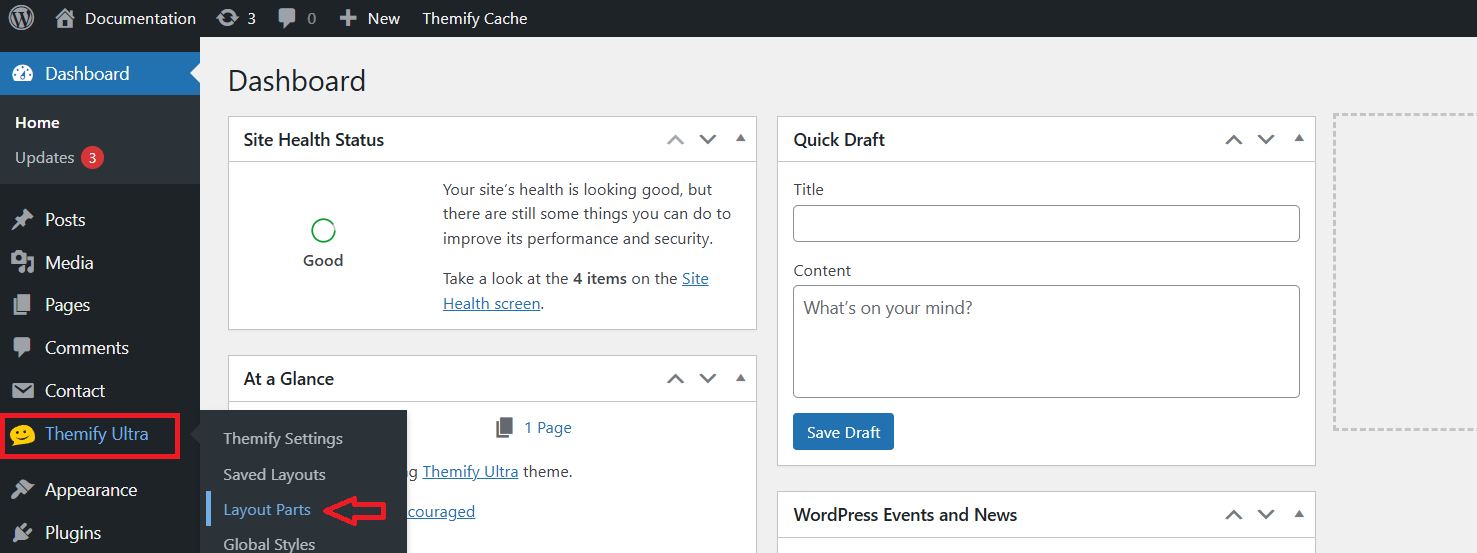
To Add a Layout Part, Click “Add Layout Part”
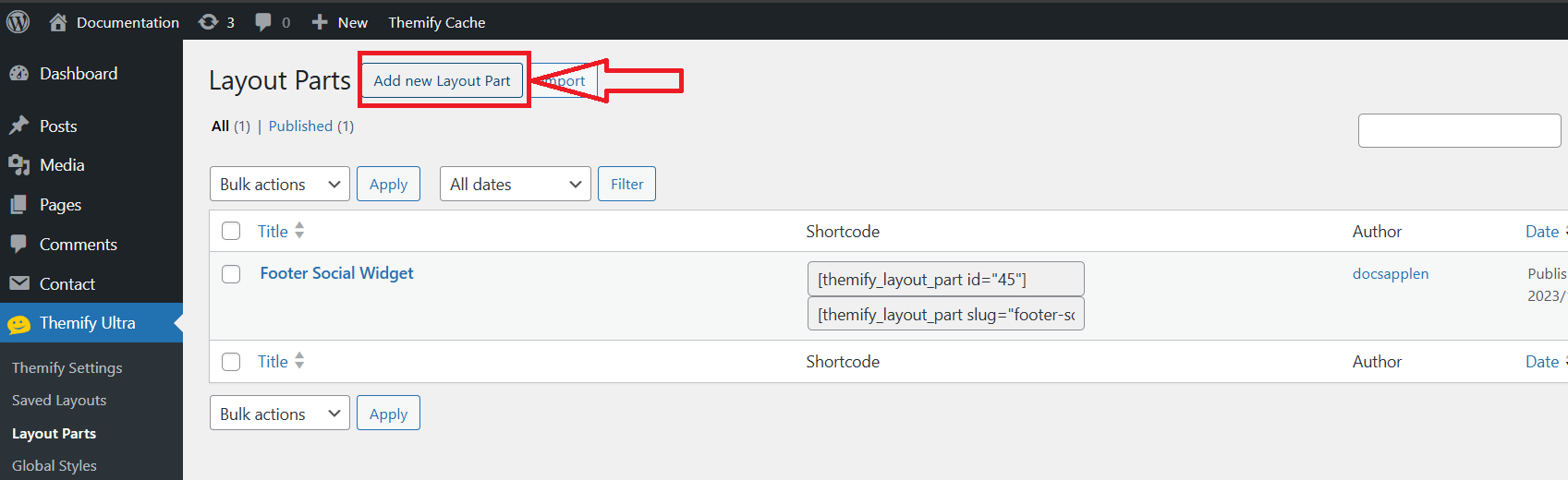
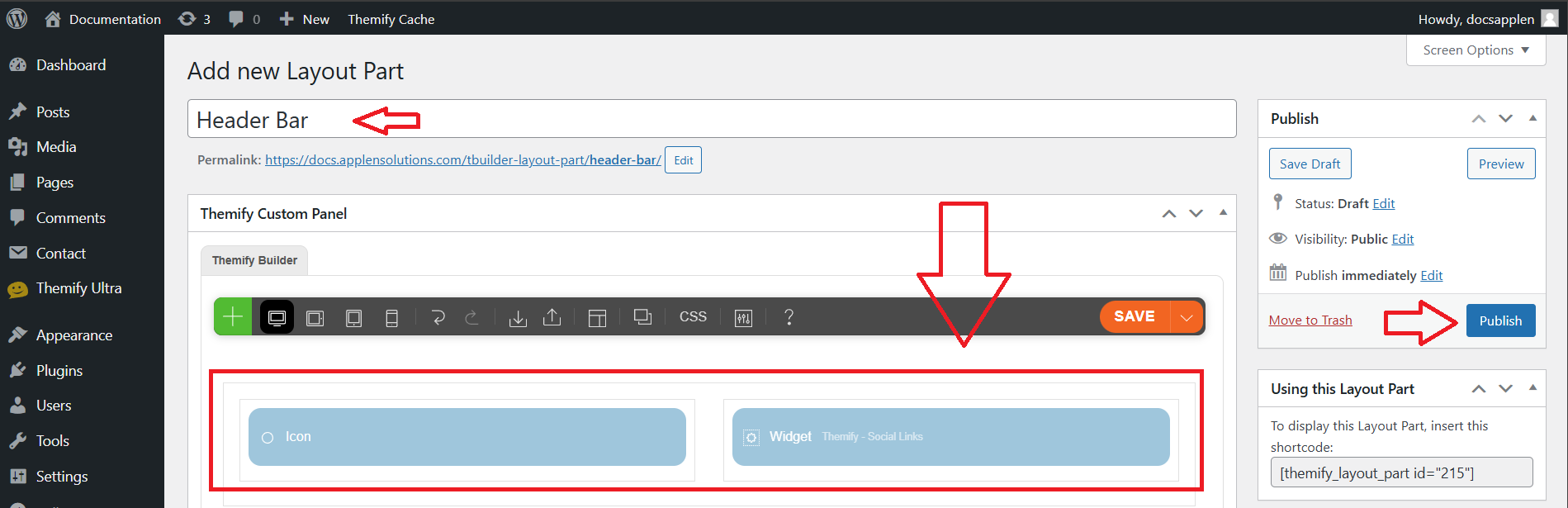
Add Header
In the layout settings, enter Header Name for the layout part, select and customize the header, and then click Publish to save and apply the changes.
After making your edits, click Preview Changes to view how the page looks with the updated header or other changes before publishing them.
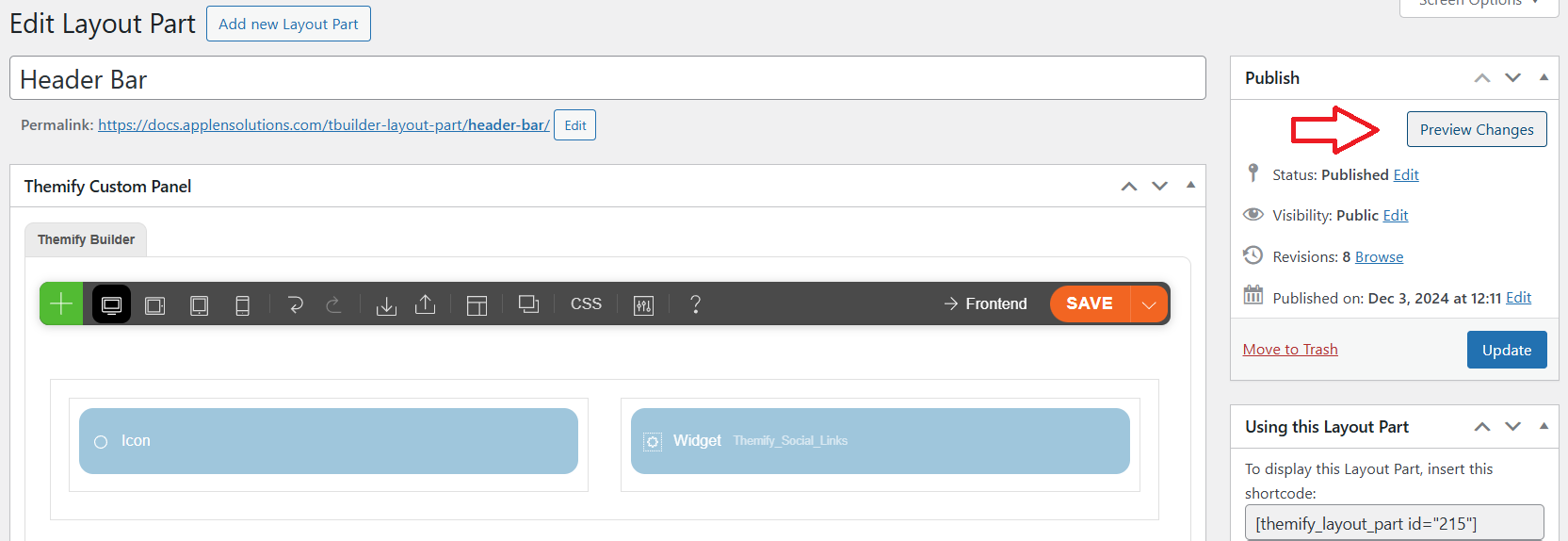

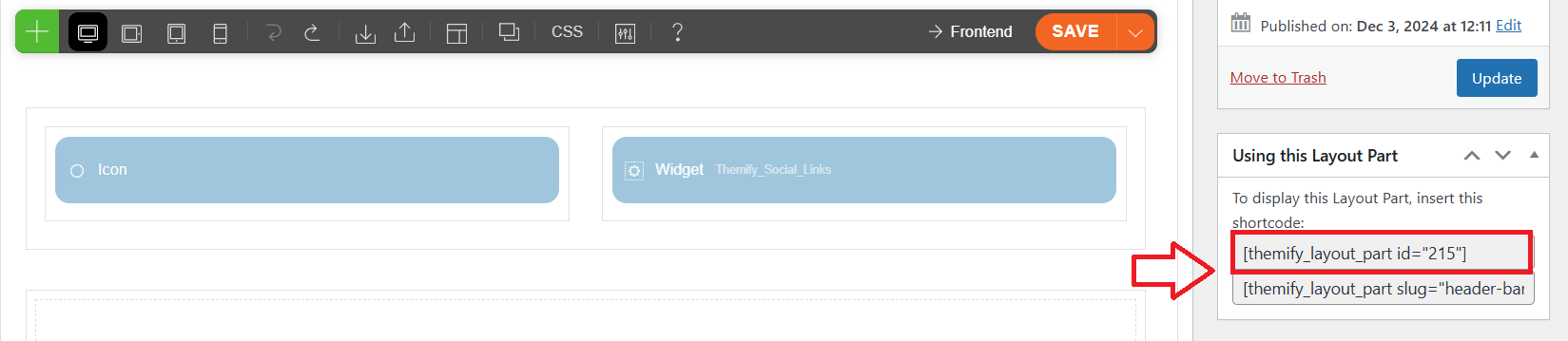
Shortcode
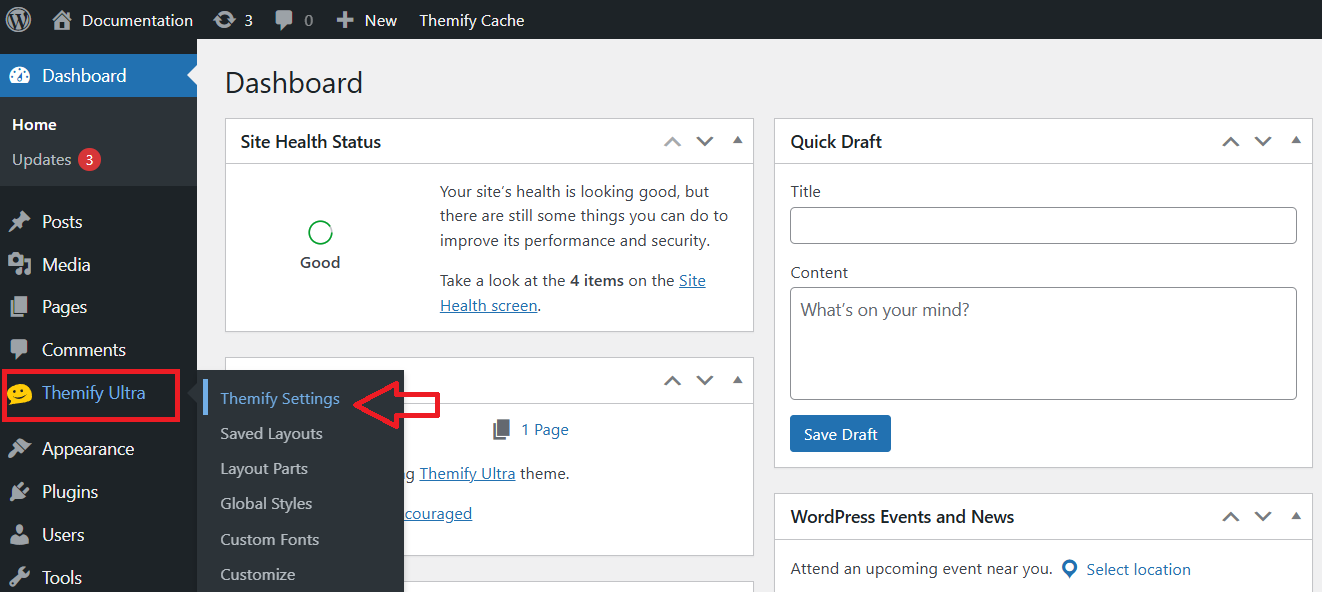
Themify Settings
Click Themefy Ultra. Next, click on Themefy Settings to access the theme’s configuration options and customize your site’s layout, colors, typography, and more.
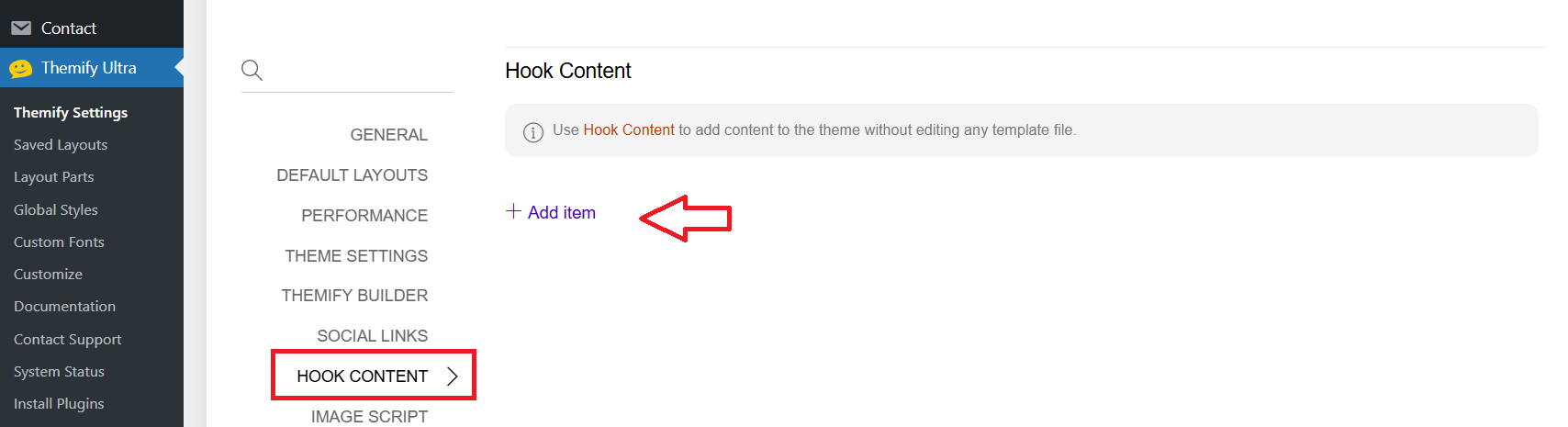
Hook Content
In the theme settings, navigate to Hook Content, then click Add item and select Add Item to insert a new element or content into the specified hook area.
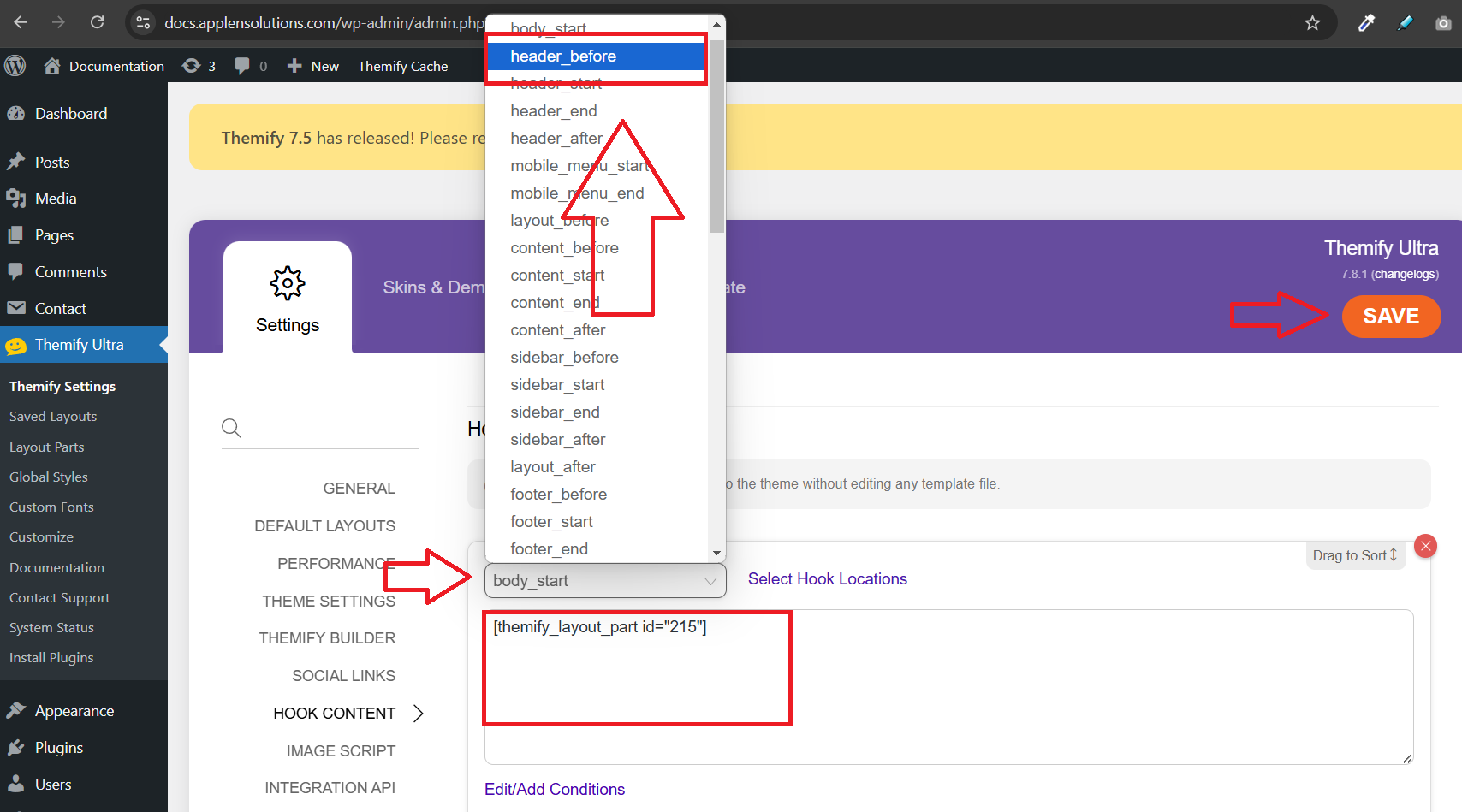
Select Hook Location “header_before” and Paste the Shortcode: In the Hook Content section, select the hook location header_before, then paste the shortcode (e.g., [your_shortcode]) into the content area, and click Save to apply the changes.
View the Header