
Menus and Highlighted Menu
Create a Menu
- Go to Appearance > Menus.
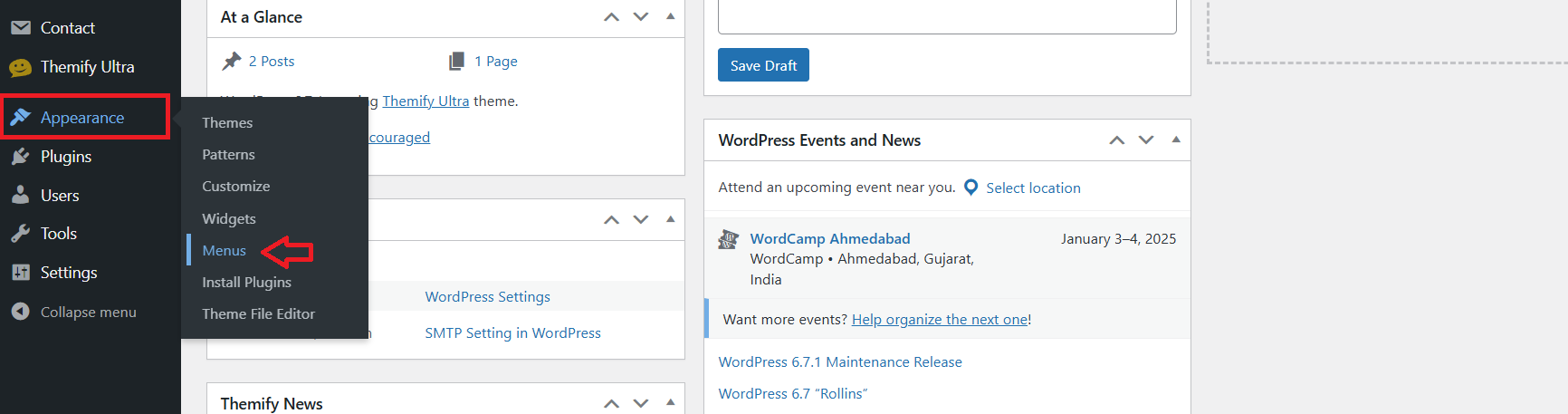
In the WordPress Menus section, enter a name for your menu (e.g., Main Menu), check the Main Navigation checkbox to assign it to the primary menu location, and then click the Create Menu button to create and save your menu.
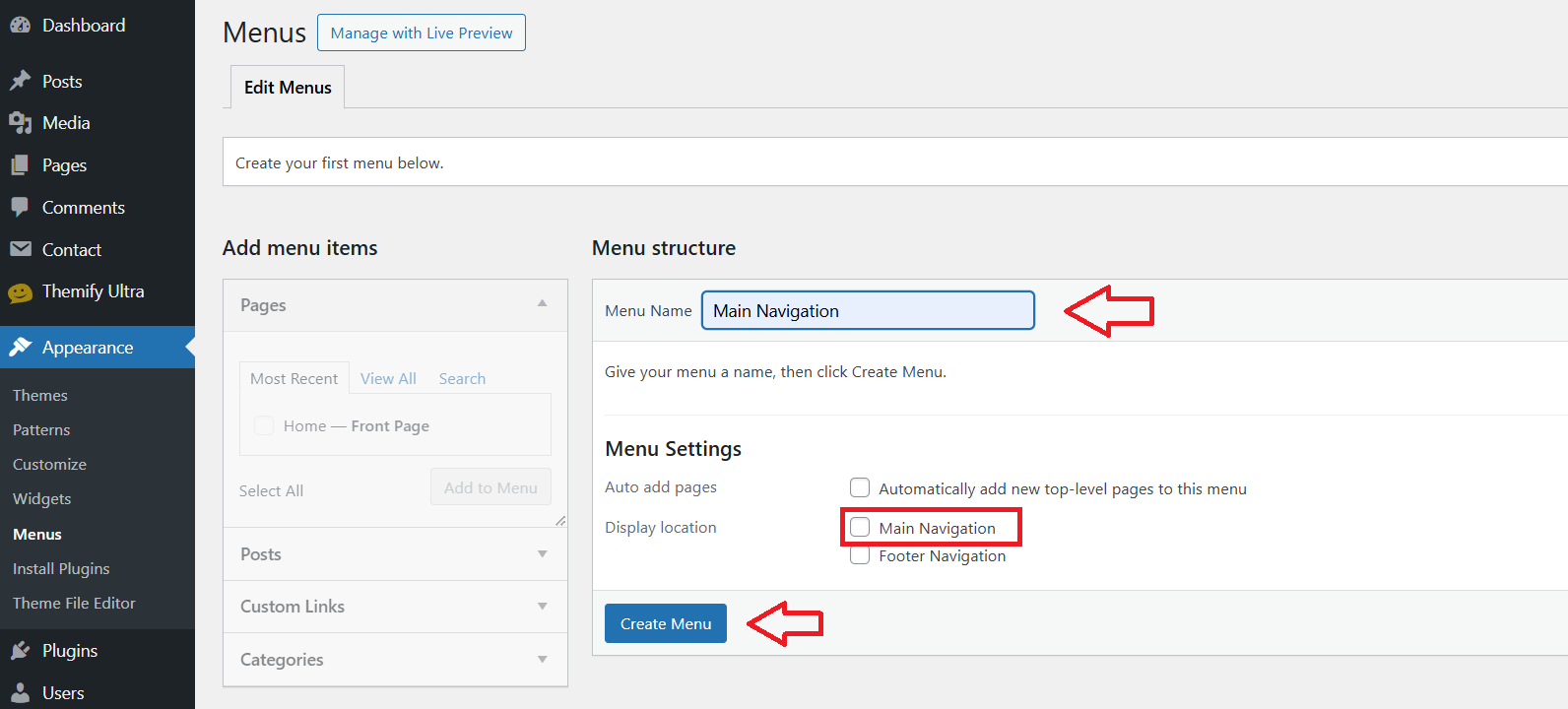
Add Pages to the Menu
After creating your menu, select the pages you want to add from the Add Menu Items section. Click Add to Menu to add the pages. Once you’ve added all desired pages, click the Save Menu button to save your changes.
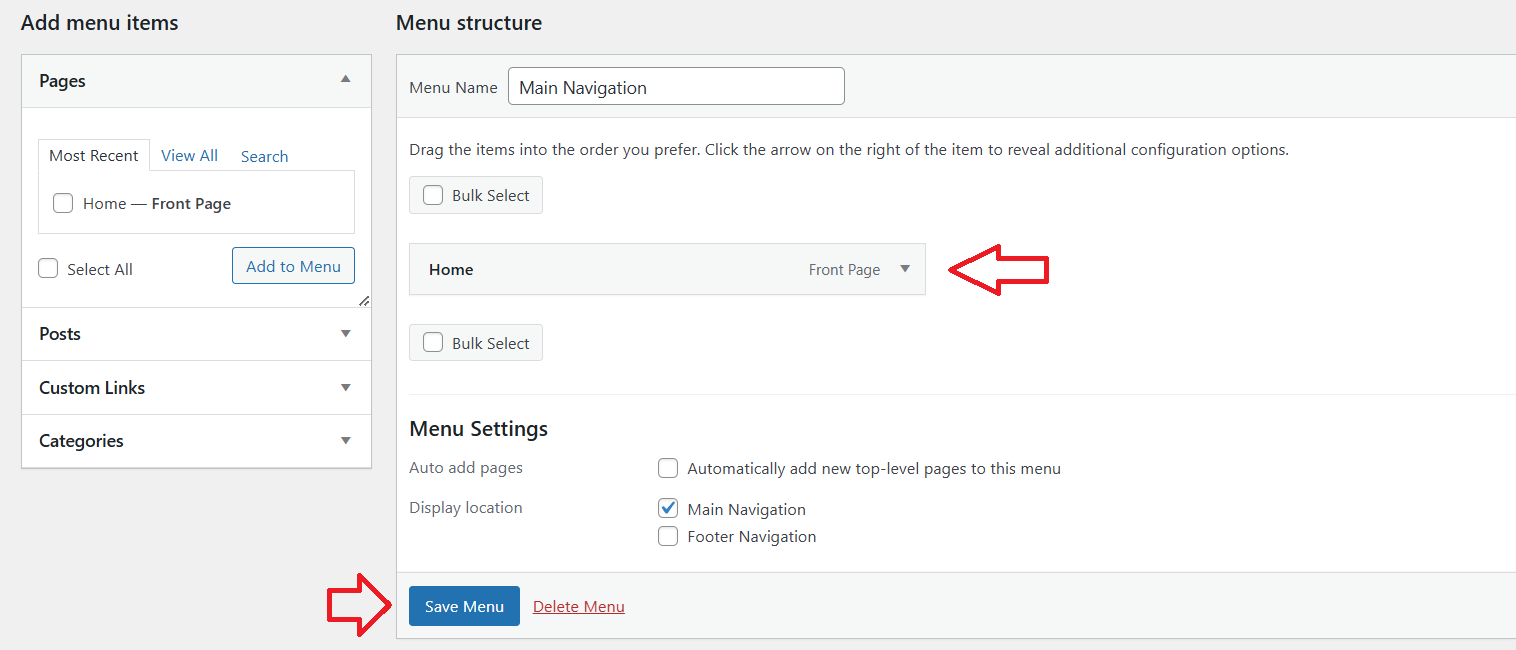
Add Custom Links to the Menu
On the left side, find the Custom Links section, enter the URL (e.g., https://example.com), and the Link Text (the text that will appear on the menu), then click Add to Menu. After adding the custom links, click Save Menu to save your changes.
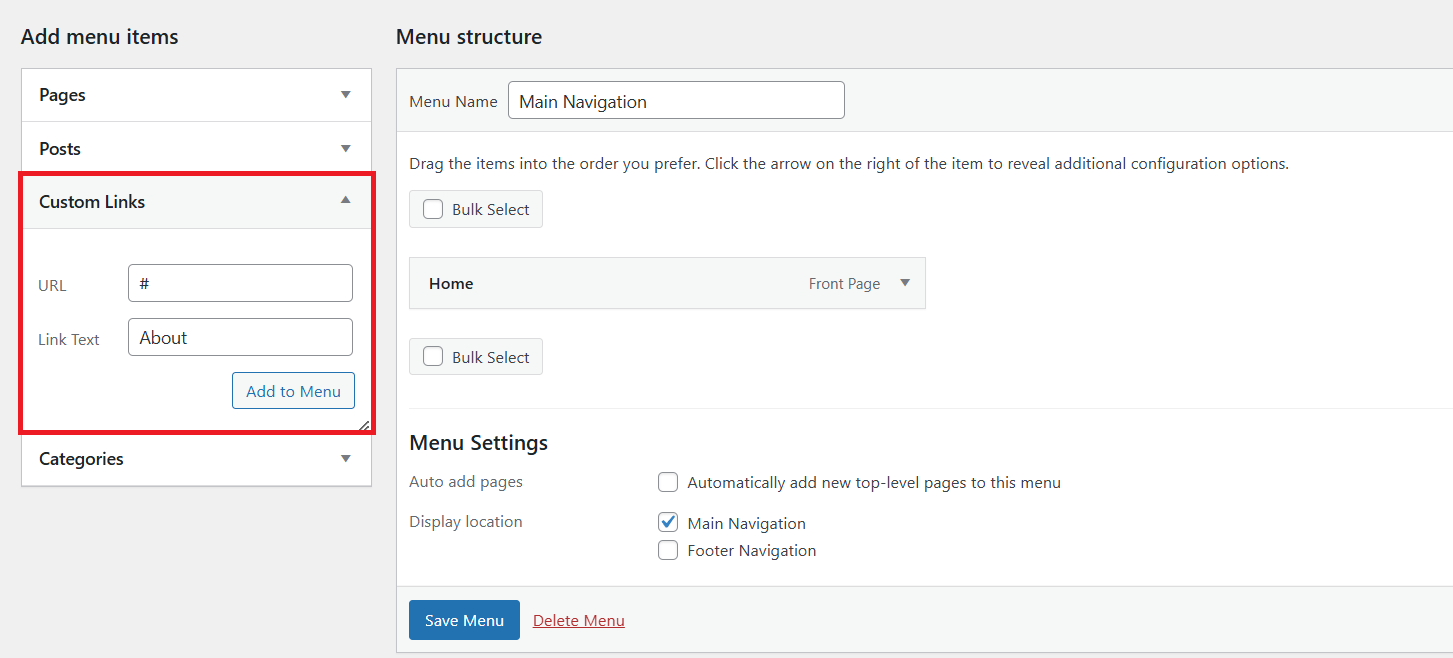
Add Icon to Menu Item
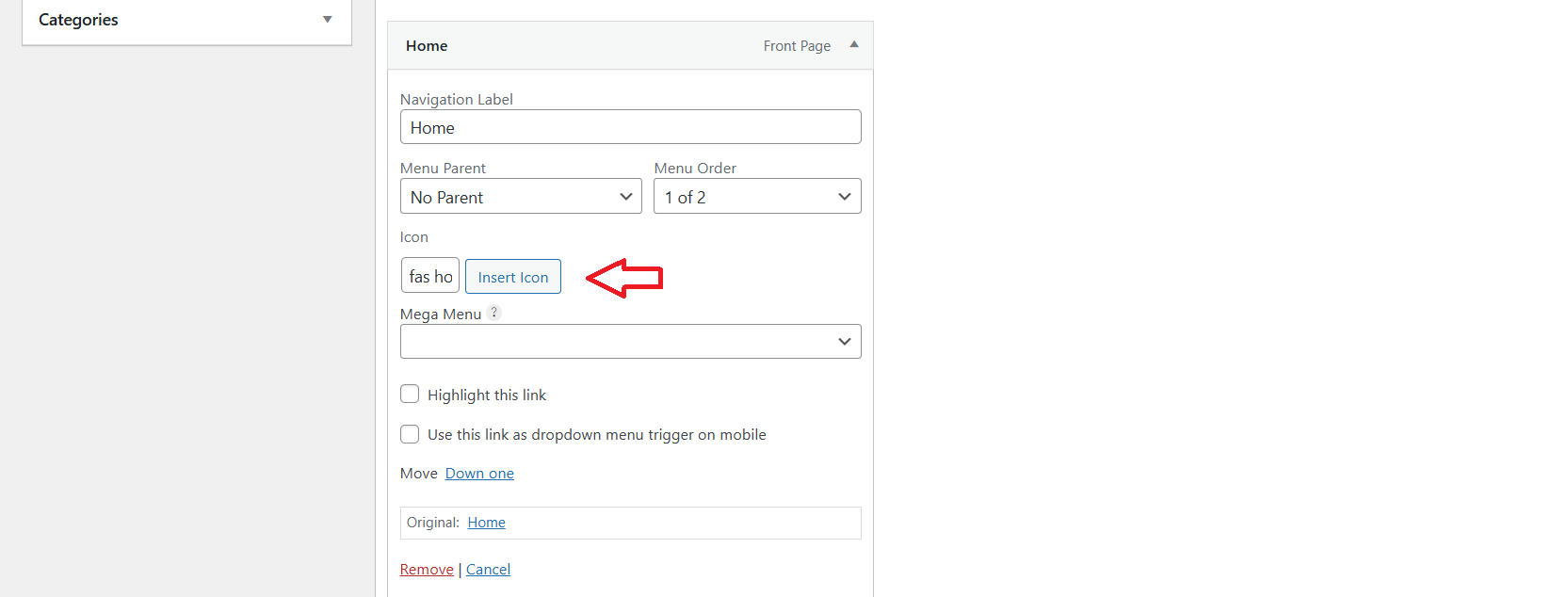
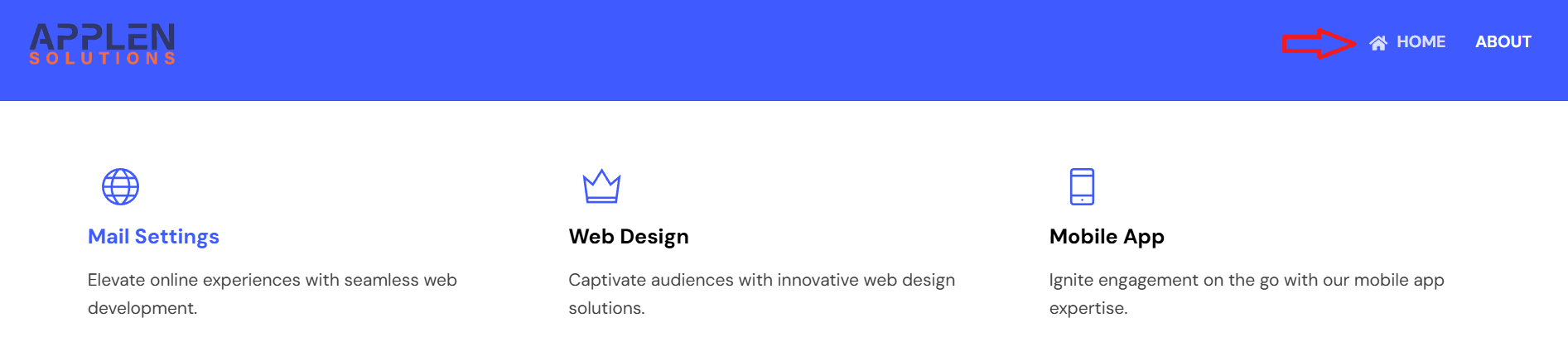
Once the Home menu item is added, click the down arrow next to the Home link. Look for the Icon or Insert Icon option (depending on your theme or plugins like Font Awesome). Click Insert Icon to choose an icon or manually enter an icon class (e.g., for Font Awesome, type fa-home for a home icon). After inserting the icon, click Save Menu to save your changes.
View menu icon
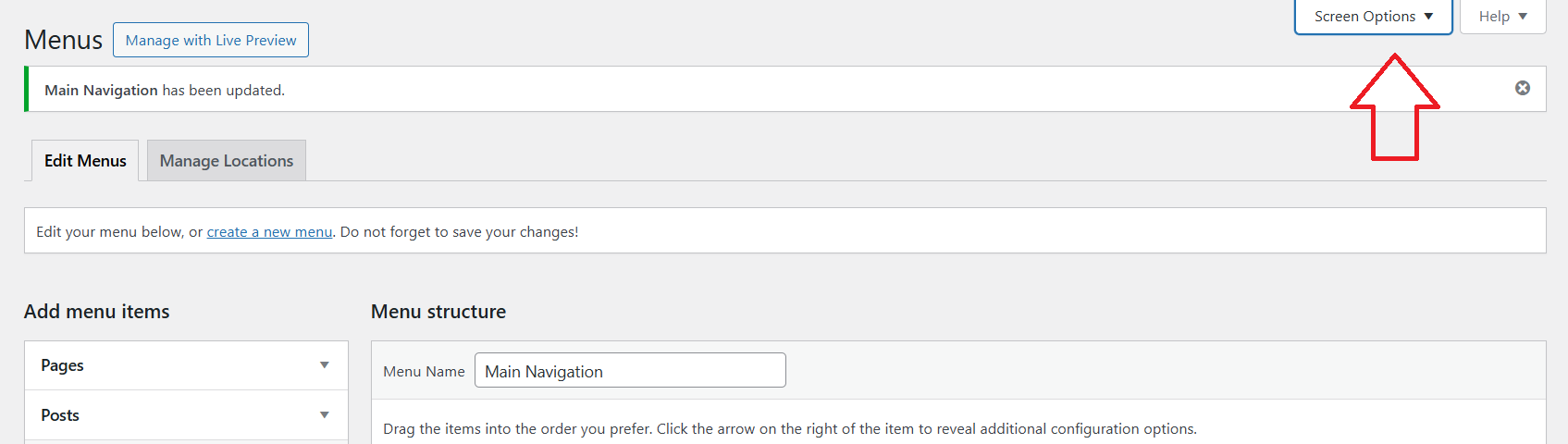
Screen Options
Screen Options allow you to customize the dashboard or admin screen layout according to your needs. This feature is available on various admin pages like Posts, Pages, Menus, Widgets, and more. It helps control the elements you see on the page.
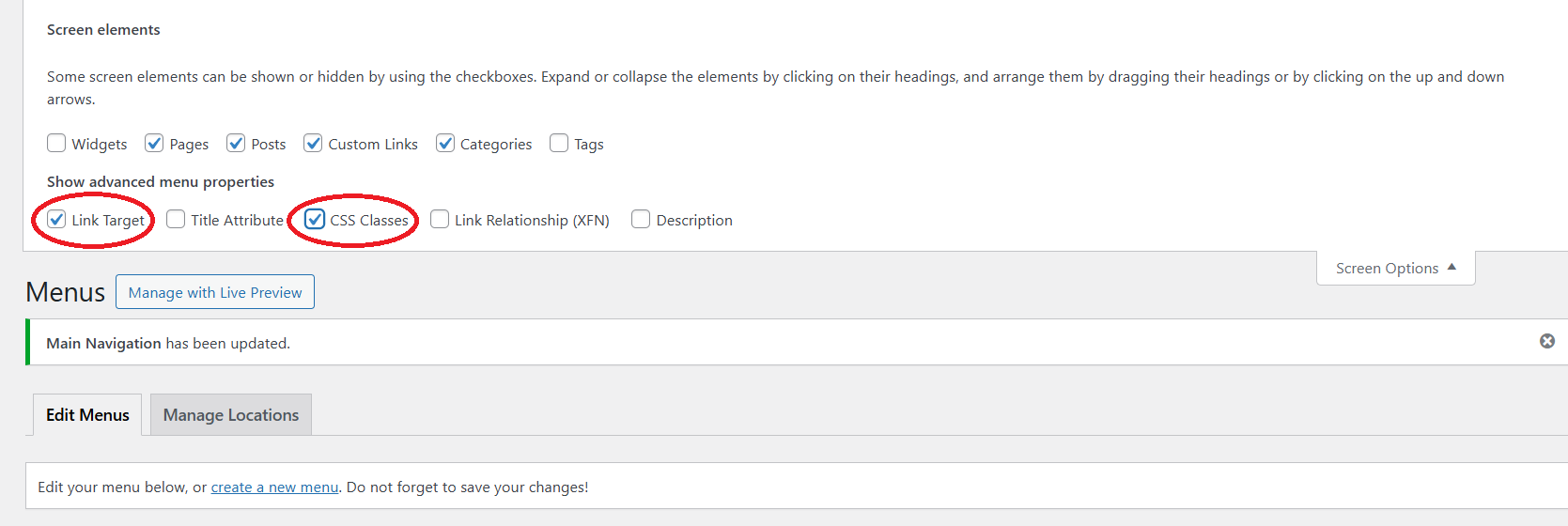
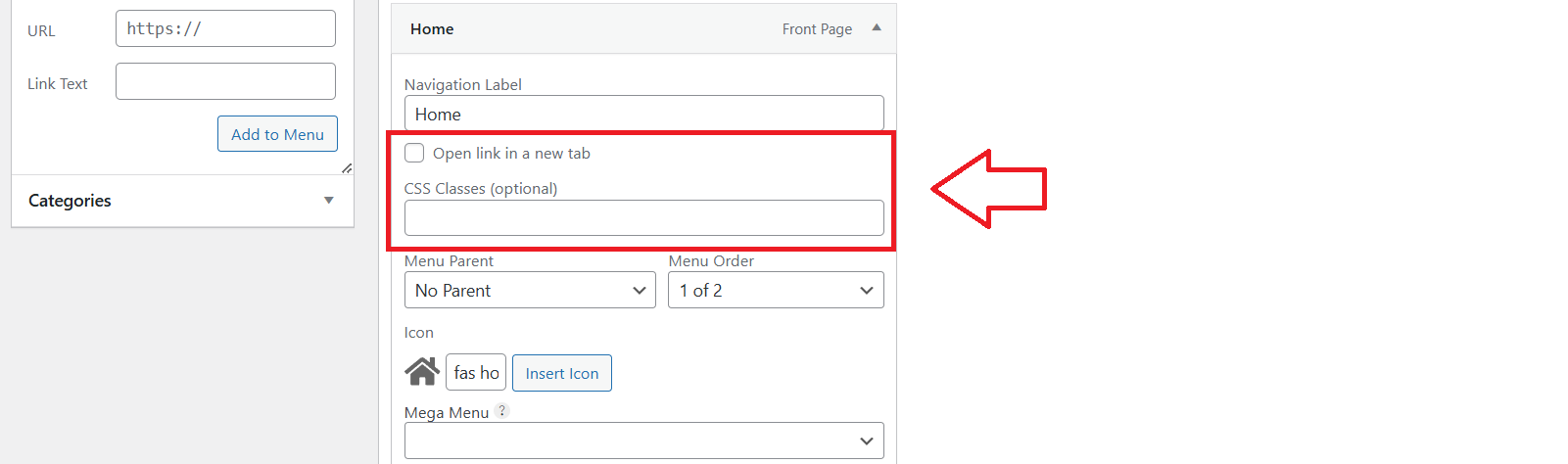
- In the top-right corner, click on Screen Options and check the CSS Classes box & Link Target.
- Link Target Checkbox : Allows you to choose if a menu item’s link should open in a new tab or the same window.
- CSS Classes Checkbox: Lets you assign custom CSS classes to menu items for additional styling.
Now, when you click on a menu item, you’ll see a field labeled CSS Classes (optional) where you can add your custom CSS class.
To add a submenu in WordPress
- Add the items you want to be part of the submenu (e.g., “Web Design,” “SEO”).
- Select them and click Add to Menu.
- Drag the submenu items slightly to the right beneath the parent item (e.g., “Services”).
- This will indent the submenu items, indicating they are nested under the parent item.
- Once you’re happy with the structure, click Save Menu to save your changes.

View the submenu on your page

To highlight the last menu item in your WordPress menu

In the Menu Structure, find the last menu item you want to highlight. Click the down arrow to expand the settings, then check the Highlight this link option and save the menu.

See the Highlight menu link.

highlight the specific menu item with the background color you choose.