
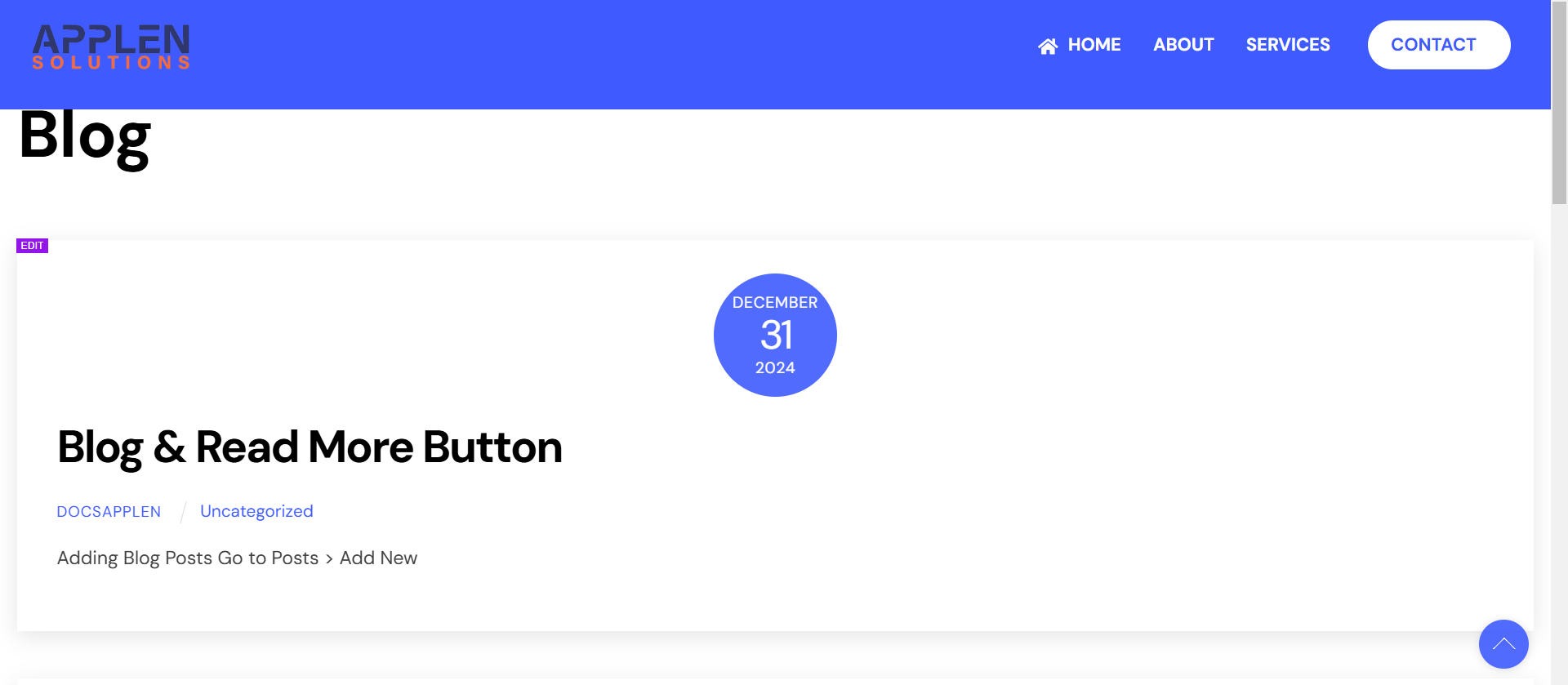
Blog & Read More Button
Adding Blog Posts
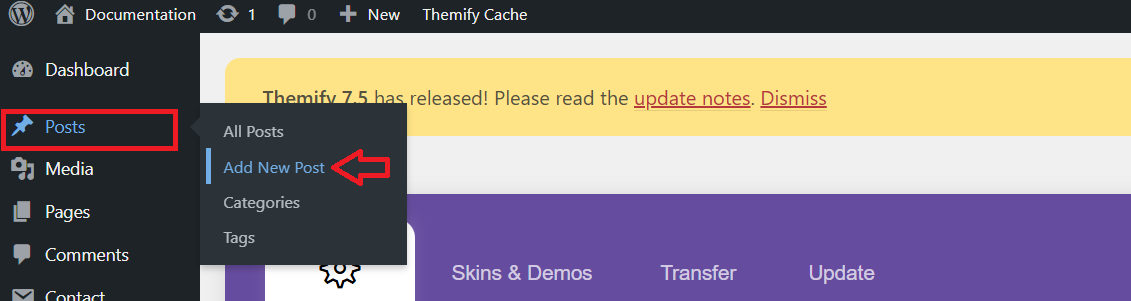
- Go to Posts > Add New
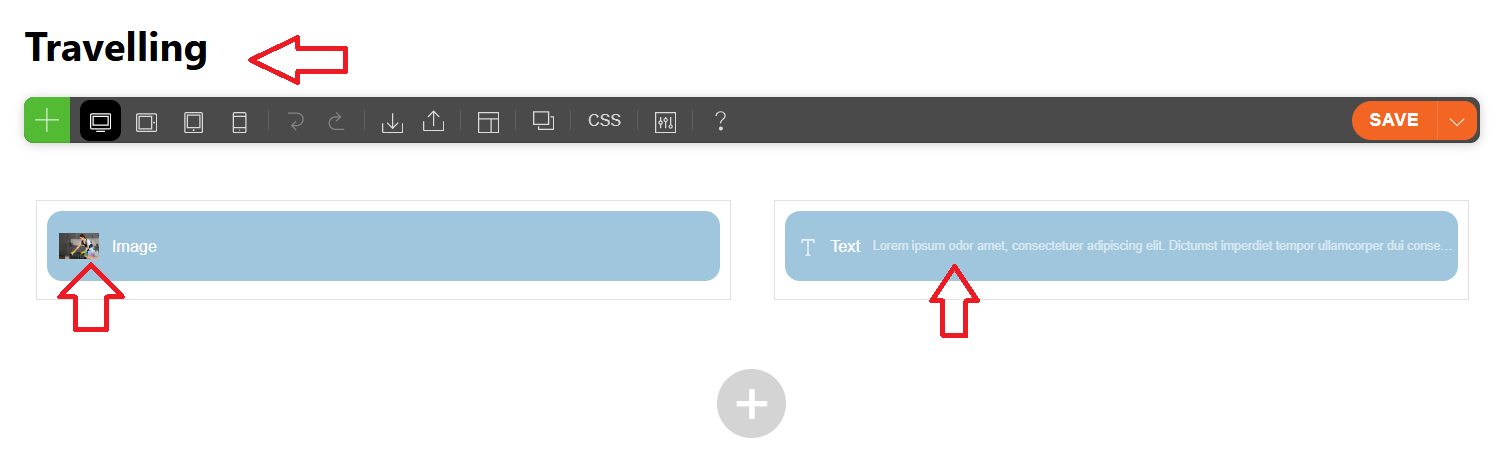
- Write your blog post content, add images, and set the title.
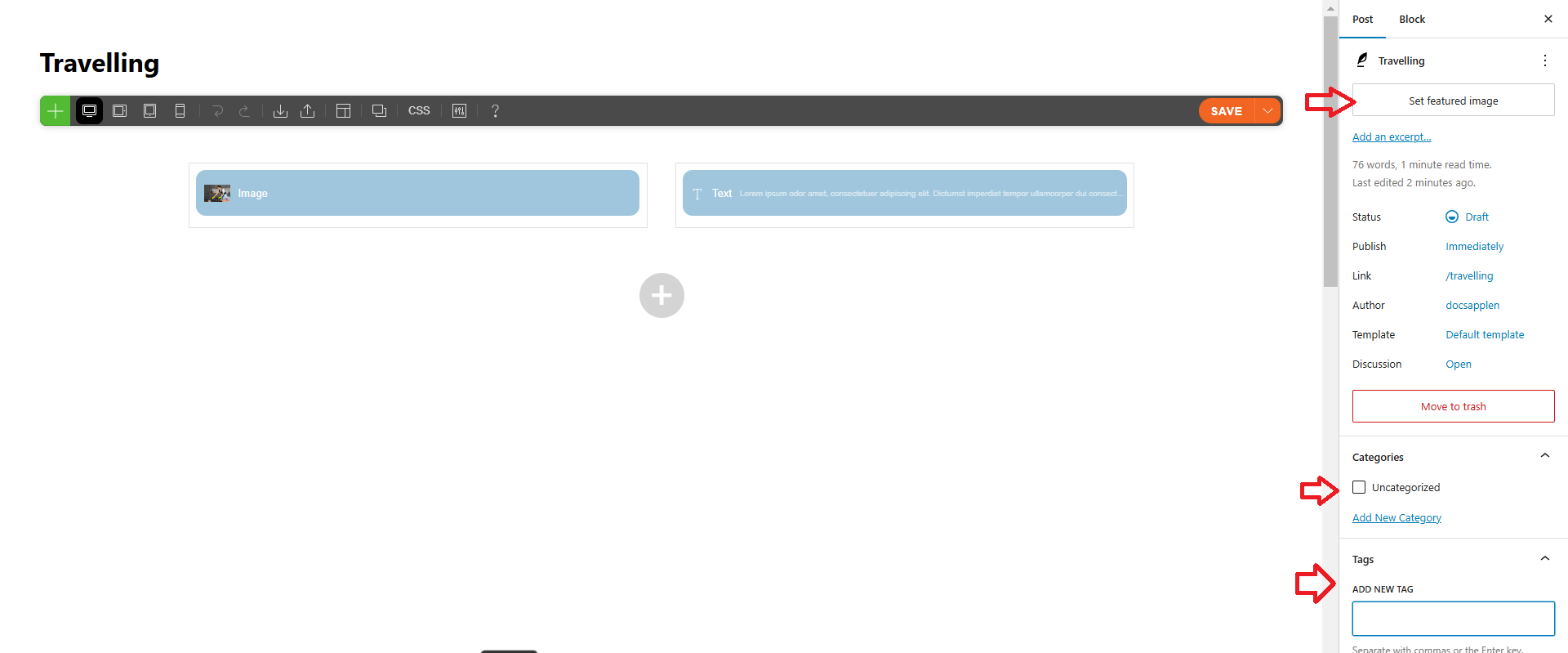
- On the right side, you can select categories, tags, and featured images.
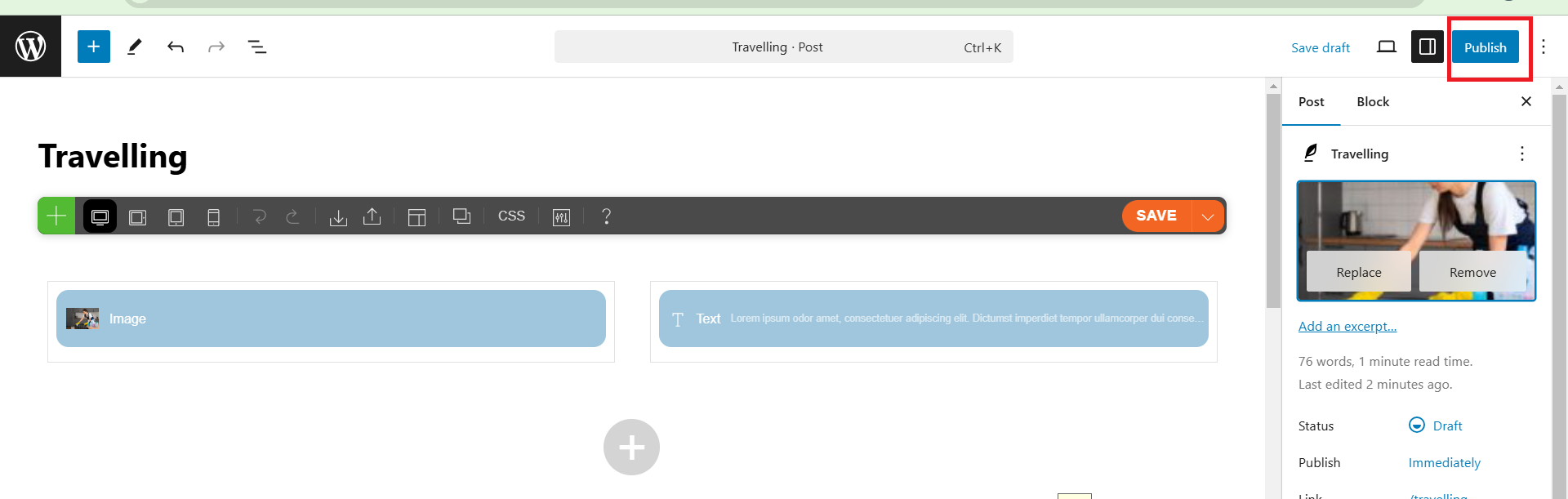
- When you’re ready, click Publish to make the post live.
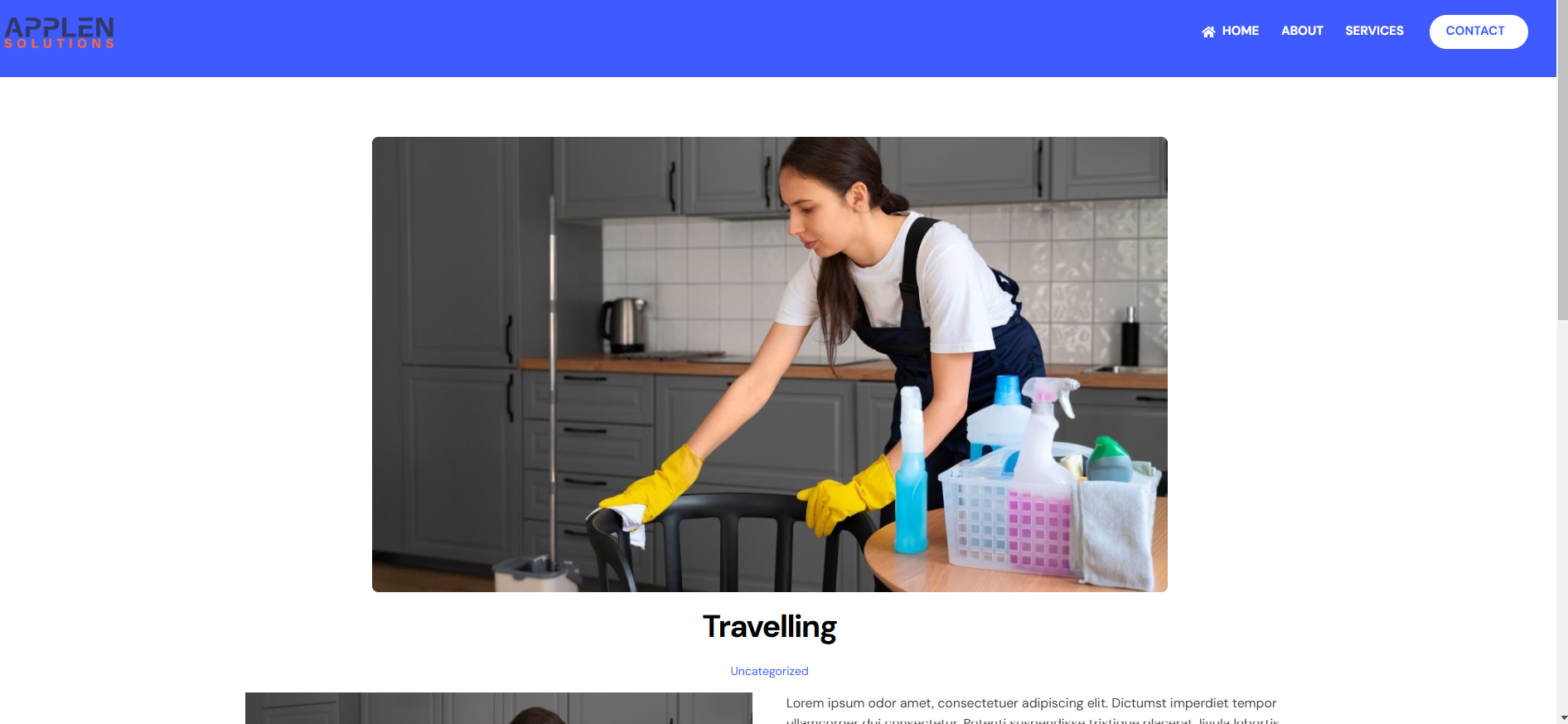
- view the post.
Adding a blog to a page in WordPress
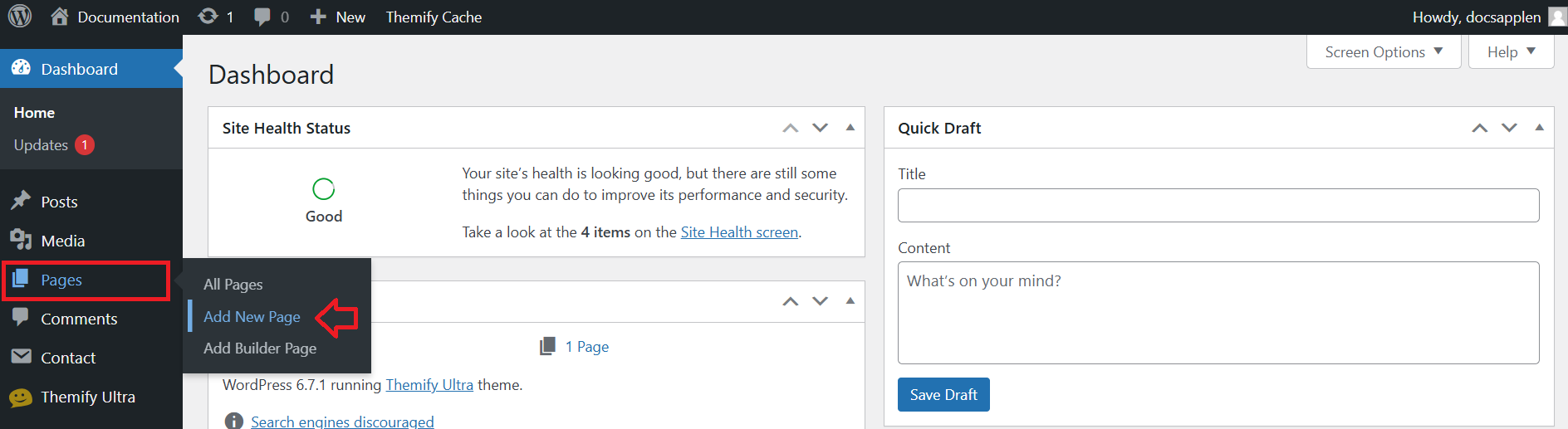
Navigate to Pages > Add New.
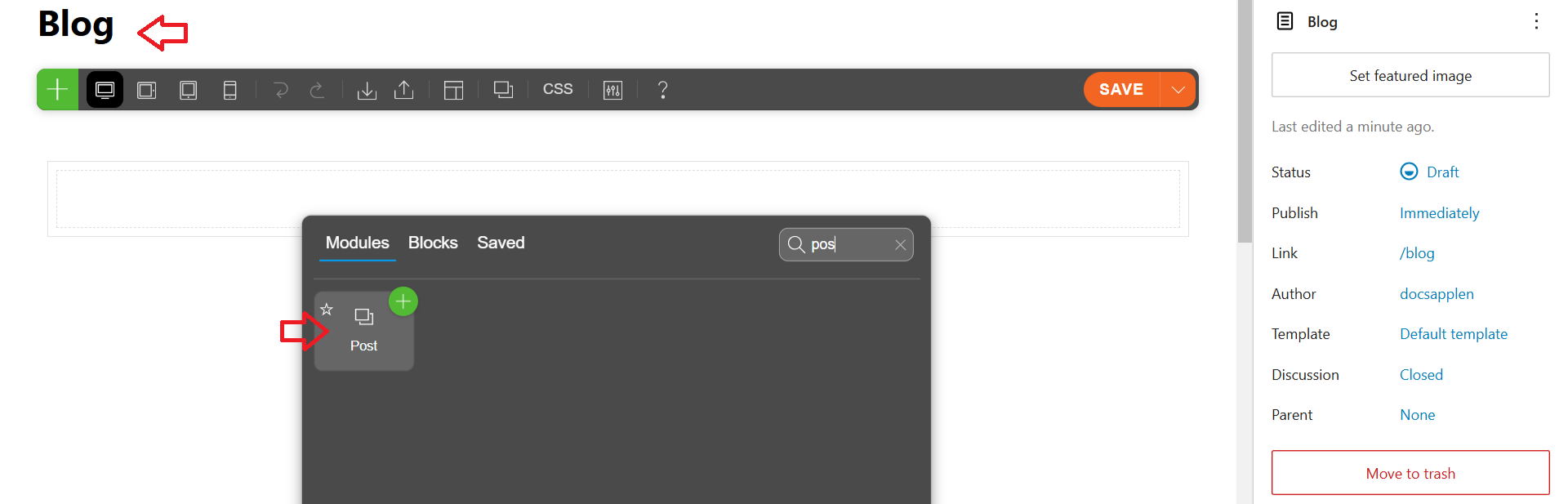
- Title the page (e.g., “Blog”)
- In the block editor, click the
+button to add a block. - Search for and add the “Posts” block.
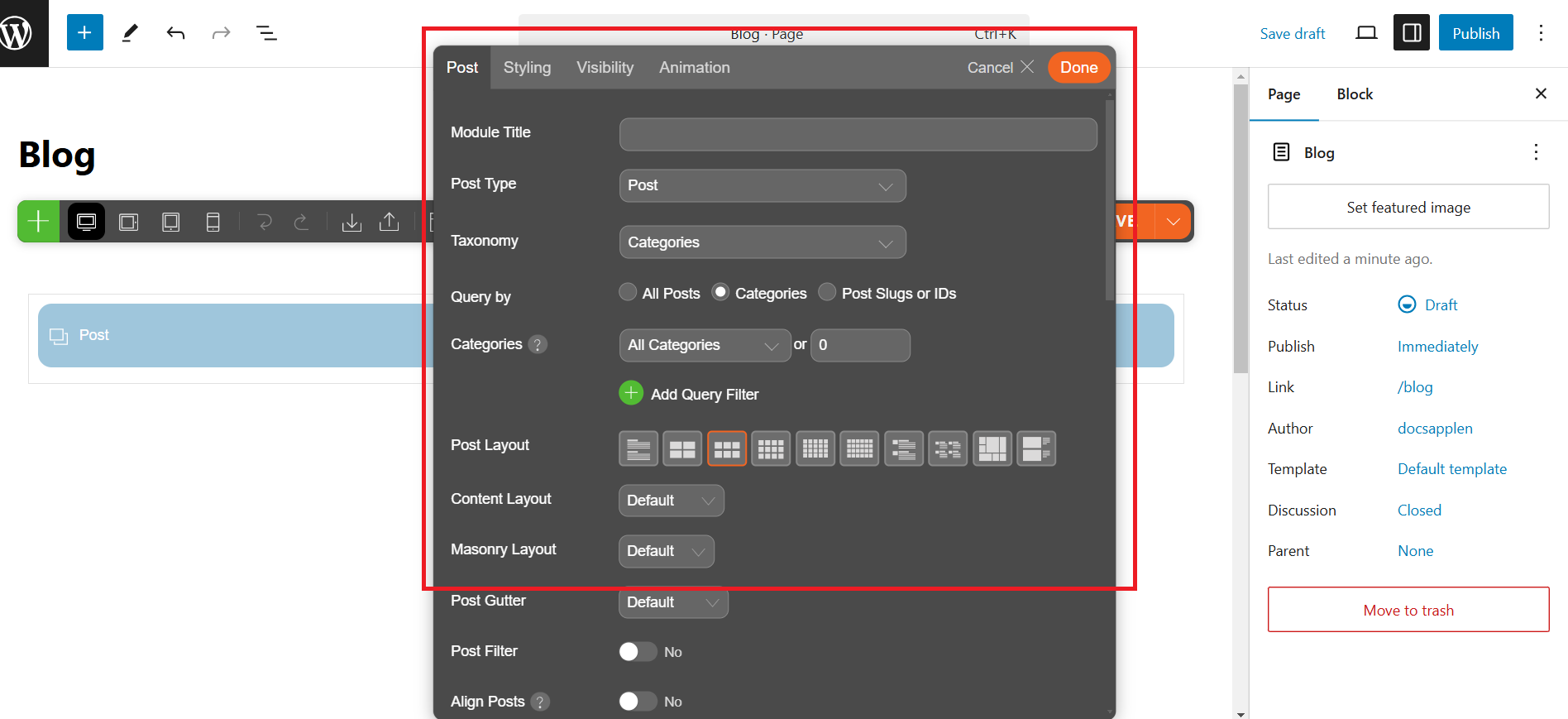
- Customize the block settings (e.g., number of posts to display, categories, and layout).
- Once satisfied with the setup, publish or update the page.
- view the blog.
How to add the read more button in the blog?
If you want to add a ‘Read More’ button to a post, edit the post, add an excerpt, and write the ‘Read More’ button code. After adding the code, save the changes to the page.

    <p class="readmore"><a href="#”>
  Read More
</a><em style="margin-left: 7px !important;margin-top: -15px;"
>
    <svg class="tf_fa tf-fas-arrow-right" aria-hidden="true">
      <use href="#tf-fas-arrow-right"></use>
    </svg><br>
  </em></p>
- View Read More Button in the blog page.