
Contact form 7
How to Install and Set Up Contact Form 7 Plugin on WordPress
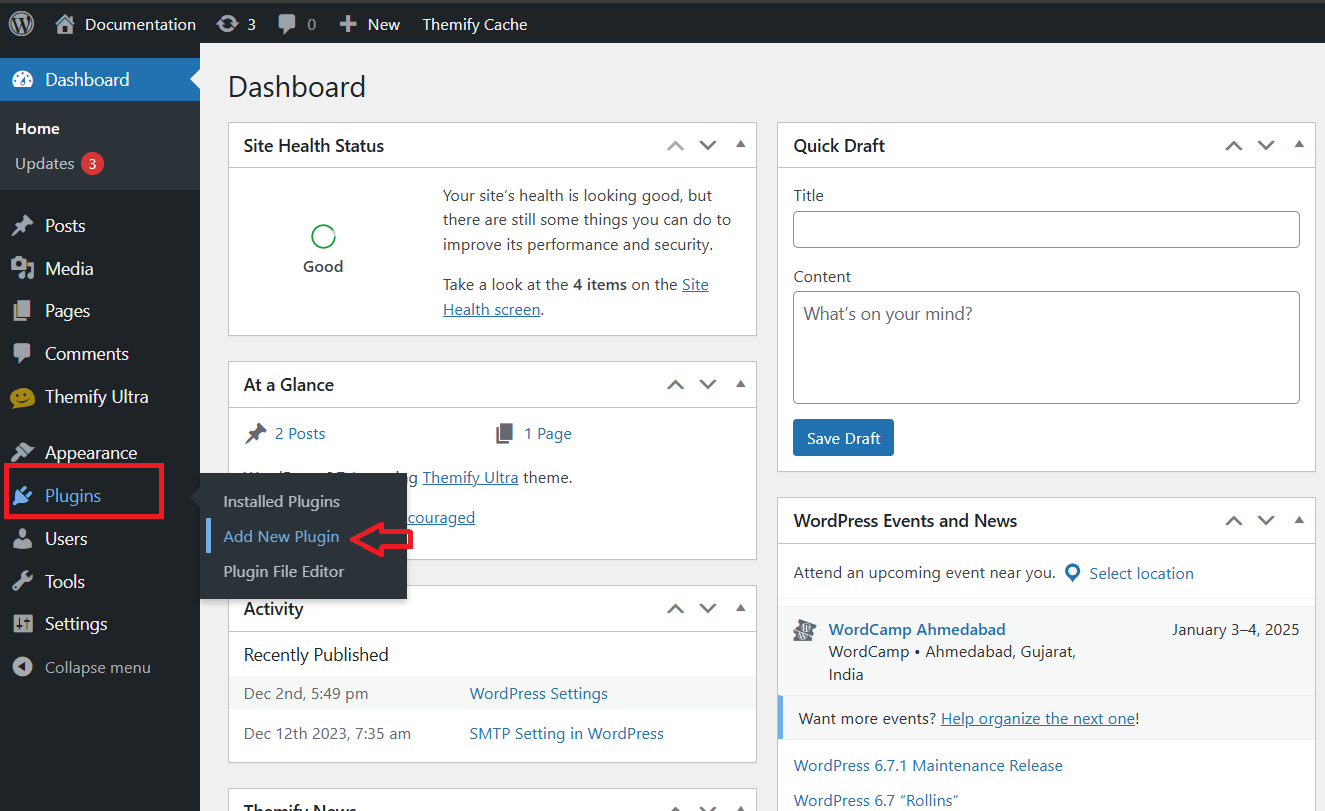
Go to Plugins > Add New
- In your WordPress dashboard, locate the Plugins section in the left-hand menu.
- Click on Add New to begin the plugin installation process.
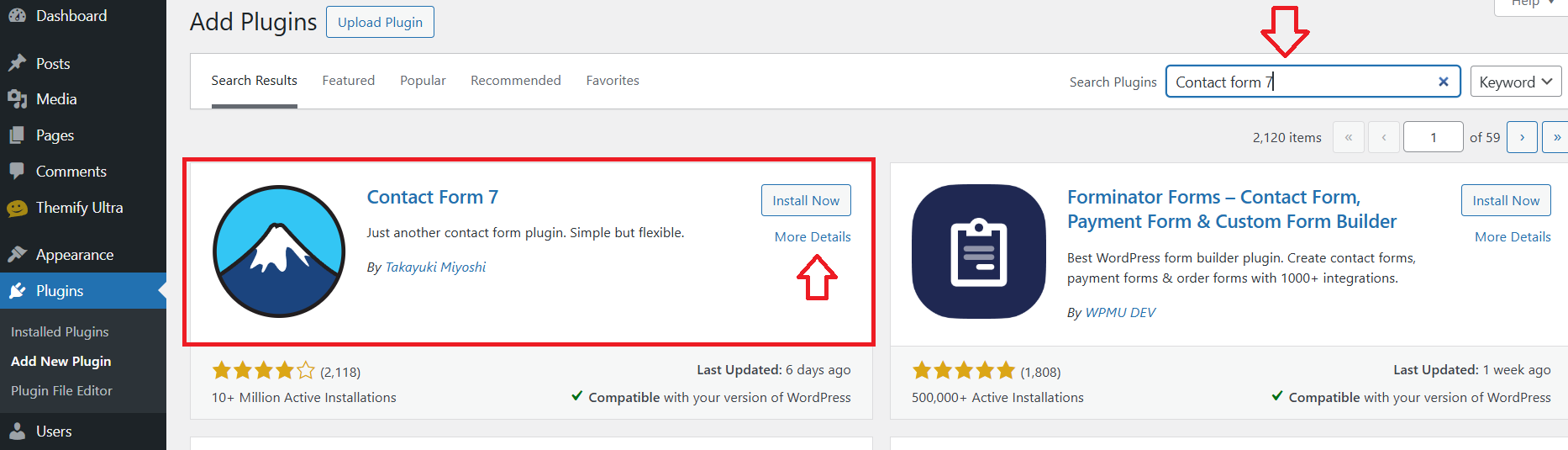
Search for the Plugin
In the Add Plugins page, use the search bar to type the name of the plugin you want to install, such as Contact Form 7, then click the Install Now button next to the plugin in the search results.
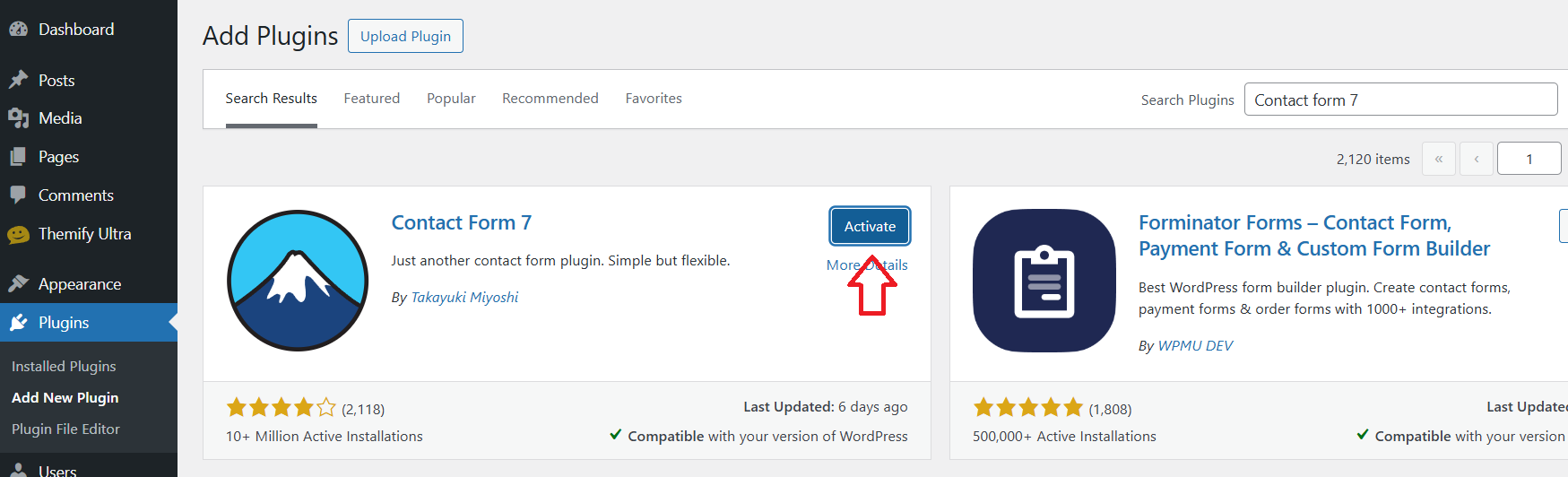
Activate the Plugin
- Once installed, the button will change to Activate.
- Click Activate to enable the plugin on your site.
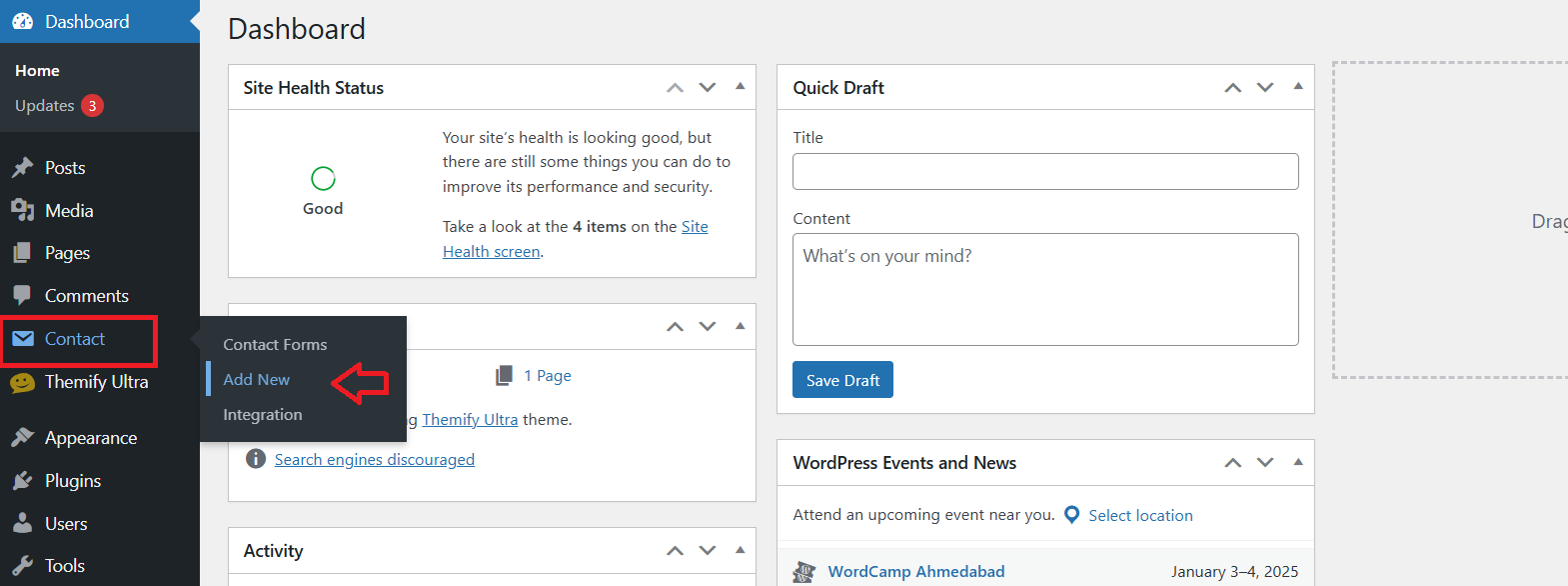
Access Contact Form 7
- After activation, you’ll see a new menu item labeled Contact in the left-hand sidebar of your dashboard.
- Then click on Add New to create a new contact form.
Edit the Form Code
- You can customize the form by editing the HTML code. For example, you can modify existing fields or add new ones like text fields, checkboxes, and radio buttons.
- After editing the form code, give the form a Title at the top.
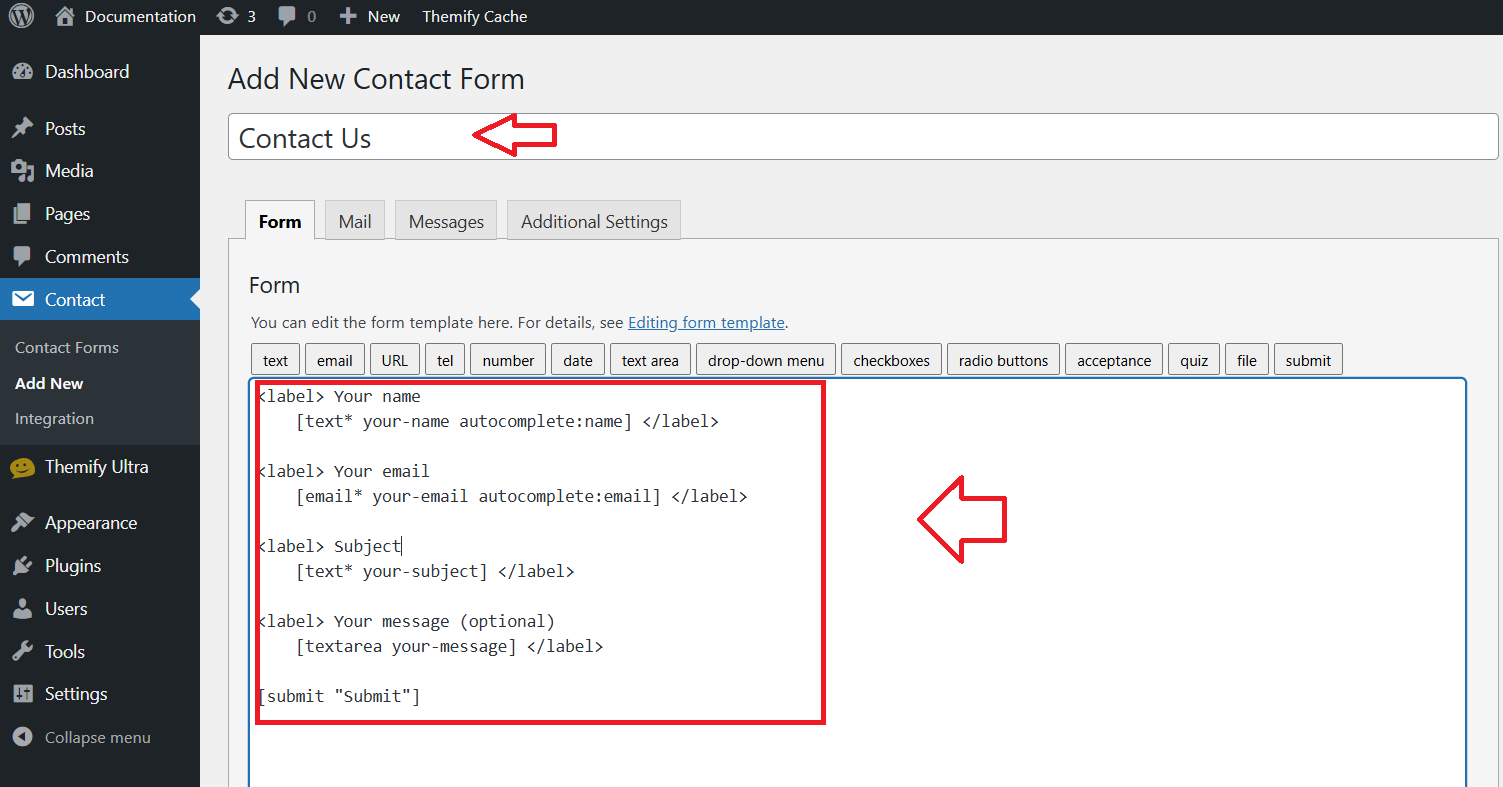
Customize the Form Fields
- To add new fields, use the buttons above the form editor to insert different types of input fields (e.g., Text, Email, Text Area, Checkboxes, etc.).
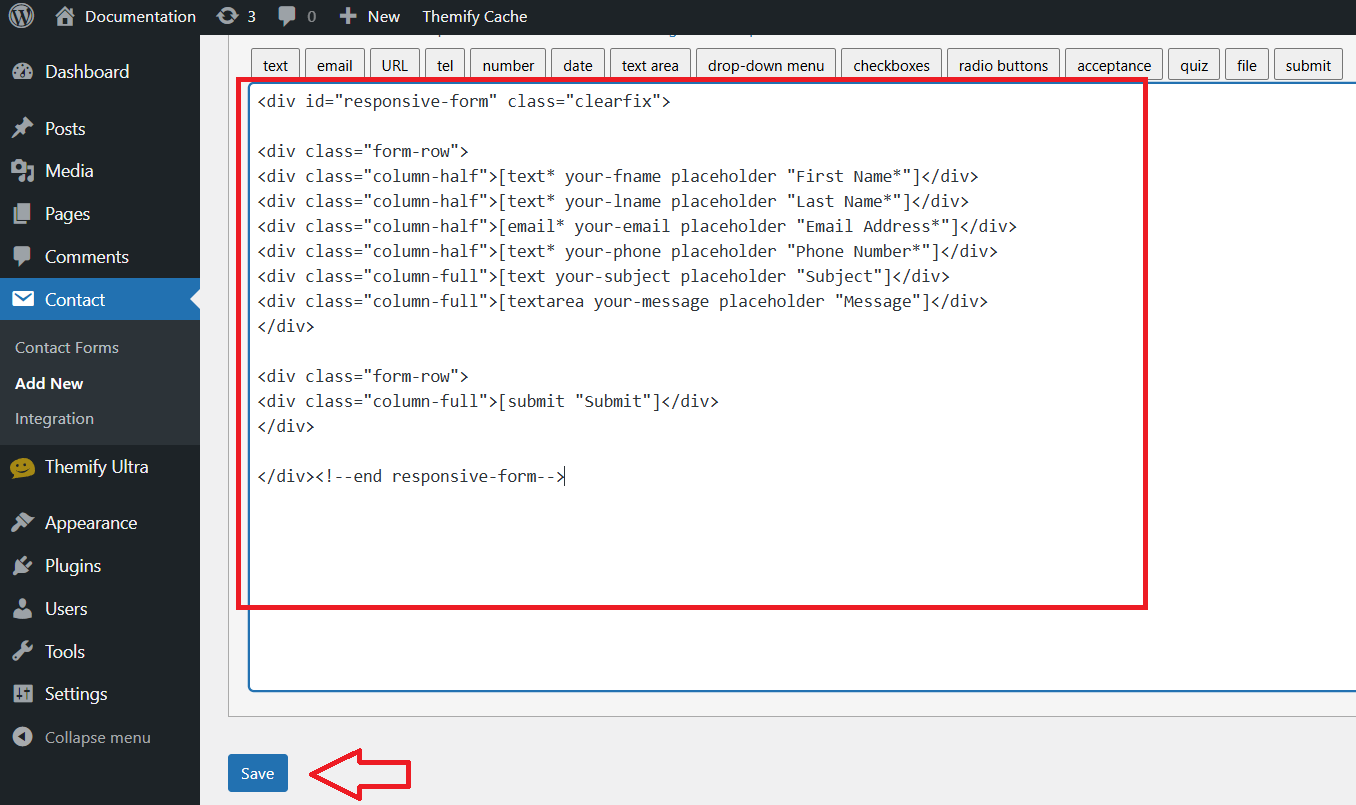
- After customizing the form, click Save to store your changes.
    <div id="responsive-form" class="clearfix">

<div class="form-row">
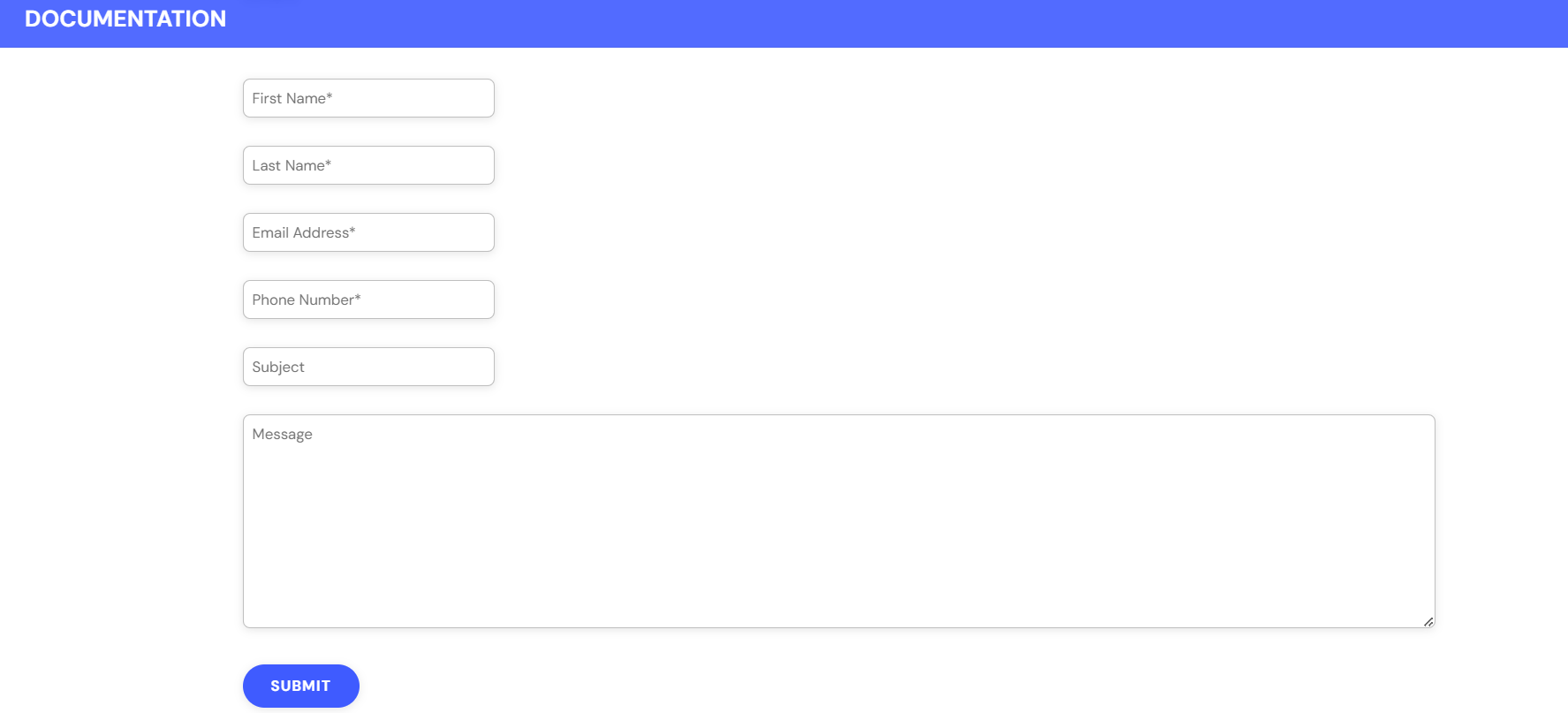
<div class="column-half">[text* your-fname placeholder "First Name*"]</div>
<div class="column-half">[text* your-lname placeholder "Last Name*"]</div>
<div class="column-half">[email* your-email placeholder "Email Address*"]</div>
<div class="column-half">[text* your-phone placeholder "Phone Number*"]</div>
<div class="column-full">[text your-subject placeholder "Subject"]</div>
<div class="column-full">[textarea your-message placeholder "Message"]</div>
</div>

<div class="form-row">
<div class="column-full">[submit "Submit"]</div>
</div>

</div><!--end responsive-form-->
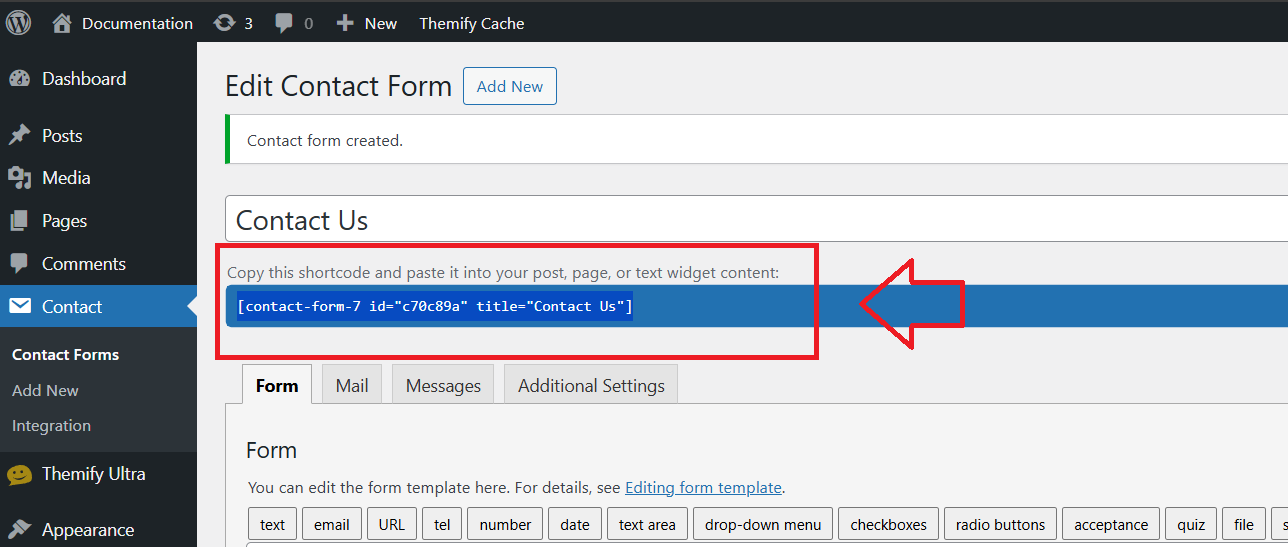
Copy the Shortcode
- After saving the form, you’ll see a Shortcode at the top of the page.
- Click and copy the entire shortcode.
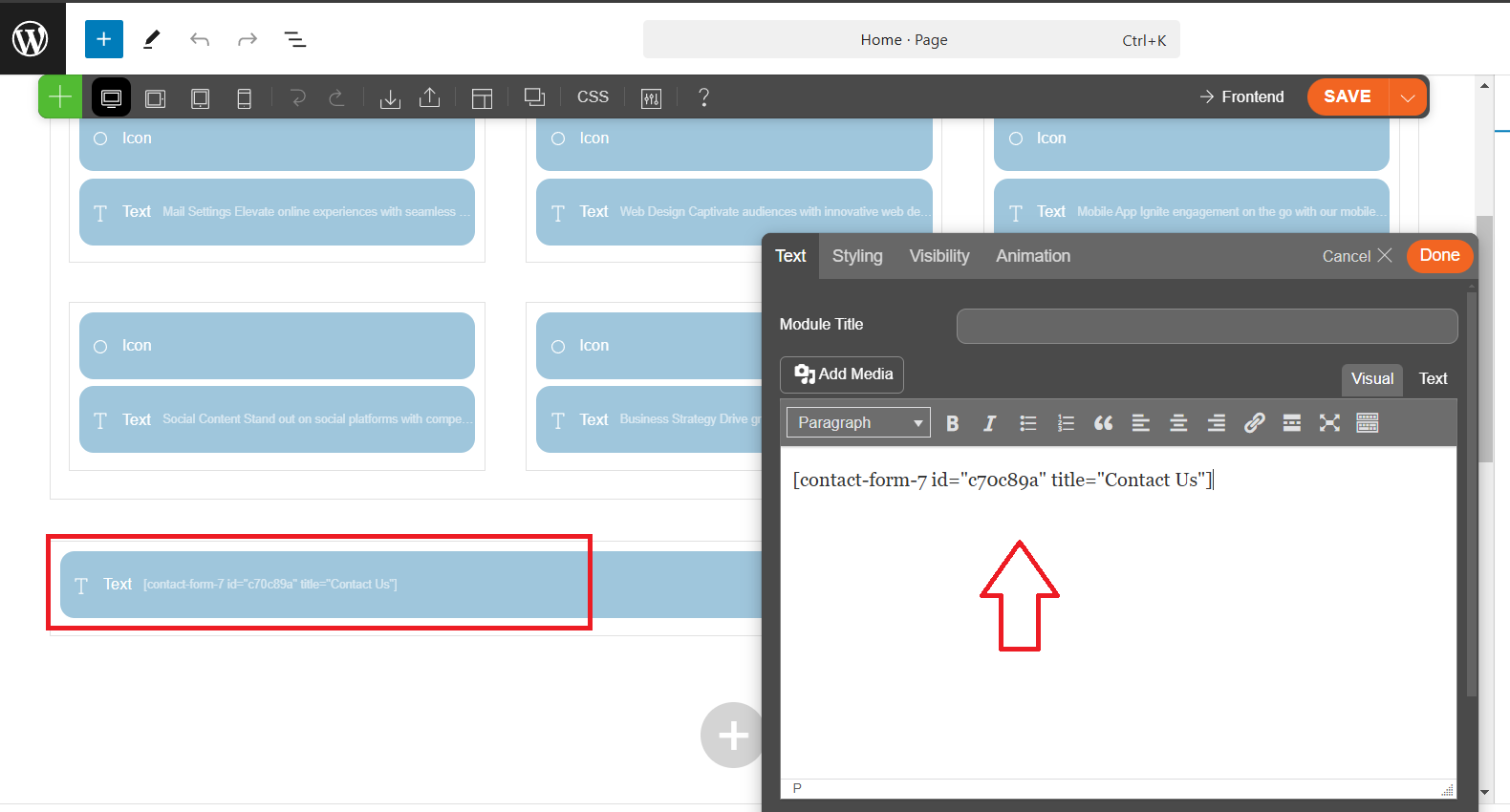
Paste the Shortcode
- Now, you can paste this shortcode into any page or post where you want the form to appear.
Publish or Update the Page
- After pasting the shortcode, click Publish (or Update if editing an existing page), then visit the page to see the contact form displayed.
Navigate to Appearance > Customize
- In your WordPress dashboard, click on Appearance in the left-hand sidebar.
- Then click on Customize to open the theme customizer.

Click on Appearance > Customize, then navigate to Theme Options to adjust settings like layout, typography, and other theme-specific features.

Advanced Options
In the Advanced Options section of the WordPress Customizer, you can find additional settings that allow you to further customize the look and functionality of your website. These options may include:
- Custom CSS: Write custom CSS code to style your website beyond the built-in options.
- Typography: Adjust fonts, sizes, and styles for various text elements on your site.
- Layout: Modify the layout of elements like headers, footers, and sidebars.
- Custom Scripts: Add custom JavaScript or other code snippets to enhance your site’s functionality.
These advanced options provide more control over your site’s design, but require some familiarity with coding if you wish to make detailed changes.

Click on Custom CSS, Edit CSS Code, and Publish
-
Click on Custom CSS: In the WordPress Customizer, navigate to Additional CSS under the advanced options.
-
Edit CSS Code: Enter your custom CSS code in the text area to modify the styling of elements on your site.
-
Publish: After adding your CSS code, click Publish at the top to save and apply the changes to your website.
    /*CF7 CSS*/

#responsive-form {
	max-width: 95%
/*-- change this to get your desired form width --*/
	;
	margin: 0 auto;
	width: 100%;
}

.form-row {
	width: 100%;
}

.column-half,
.column-full,
.column-third,
.column-four,
.column-five {
	text-align: center;
	float: left;
	position: relative;
	padding: 0 0.40rem;
	width: 100%;
	-webkit-box-sizing: border-box;
	-moz-box-sizing: border-box;
	box-sizing: border-box
}

.column-half {
	width: 50%;
}

.column-third {
	width: 33.33%;
}

.column-four {
	width: 25%;
	text-align: center;
}

.column-five {
	width: 75%;
}

.clearfix:after {
	content: "";
	display: table;
	clear: both;
}

/**---------------- Media query ----------------**/
@media only screen and (max-width: 768px) {
	.column-half {
		width: 100%;
	}

	.column-third {
		width: 100%;
	}

	.column-four {
		width: 100%;
		text-align: center;
	}

	.column-five {
		width: 100%;
	}
}

.wpcf7 input[type="text"],
.wpcf7 input[type="email"],
.wpcf7 textarea,
select {
	margin: 0 1em .7em 0;
	width: 100%;
	font-size: 15px;
	padding: 12px;
	border: 1px solid #ccc;
	border-radius: 10px;
	-webkit-box-sizing: border-box;
	-moz-box-sizing: border-box;
	box-sizing: border-box
}

.wpcf7 textarea {
	width: 100%;
}


.wpcf7 input[type="text"]:focus {
	background: #fff;
}

.wpcf7-submit {
	margin-top: 10px;
	background: #FAAC48 !important;
	color: #fff;
	text-transform: uppercase;
	border: none;
	padding: 10px 30px;
	cursor: pointer;
	width: 100%;
	text-align: center;
	border-radius: 10px !important
}

.wpcf7-submit:hover {
	background: #201918 !important;
	box-shadow: none !important;
}

span.wpcf7-not-valid-tip {
	text-shadow: none;
	font-size: 12px;
	color: #ff0000;
	background: transparent;
	padding: 0;
}

div.wpcf7-validation-errors {
	text-shadow: none;
	border: transparent;
	background: #f9cd00;
	padding: 5px;
	color: #9C6533;
	text-align: center;
	margin: 0;
	font-size: 12px;
}

div.wpcf7-mail-sent-ok {
	text-align: center;
	text-shadow: none;
	padding: 5px;
	font-size: 12px;
	background: #59a80f;
	border-color: #59a80f;
	color: #fff;
	margin: 0;
}

.wpcf7 .ajax-loader {
	width: 0 !important;
	height: 0 !important;

	padding: 0 !important;
	margin: 0 !important;

}

.wpcf7-spinner {
	display: none;
}

input[type=submit],
button {
	box-shadow: none;
	border-radius: 0px;

}

::-webkit-input-placeholder {
	/* WebKit browsers */
	color: #000 !important;
	opacity: 1;
}

:-moz-placeholder {
	/* Mozilla Firefox 4 to 18 */
	color: #000 !important;
	opacity: 1;
}

::-moz-placeholder {
	/* Mozilla Firefox 19+ */
	color: #000 !important;
	opacity: 1;
}

:-ms-input-placeholder {
	/* Internet Explorer 10+ */
	color: #000 !important;
	opacity: 1;
}

/*CF7 CSS*/


Click on Mail in Contact Form 7
-
In the form editor, click the Mail tab to configure email settings, including the recipient’s email address, sender’s details, and the email subject.

In the Mail tab of your Contact Form 7 settings, ensure the “Use HTML content type” option is checked to enable HTML formatting in the email body, then click Save to apply the changes.