
Custom Footer
Layout Parts
-
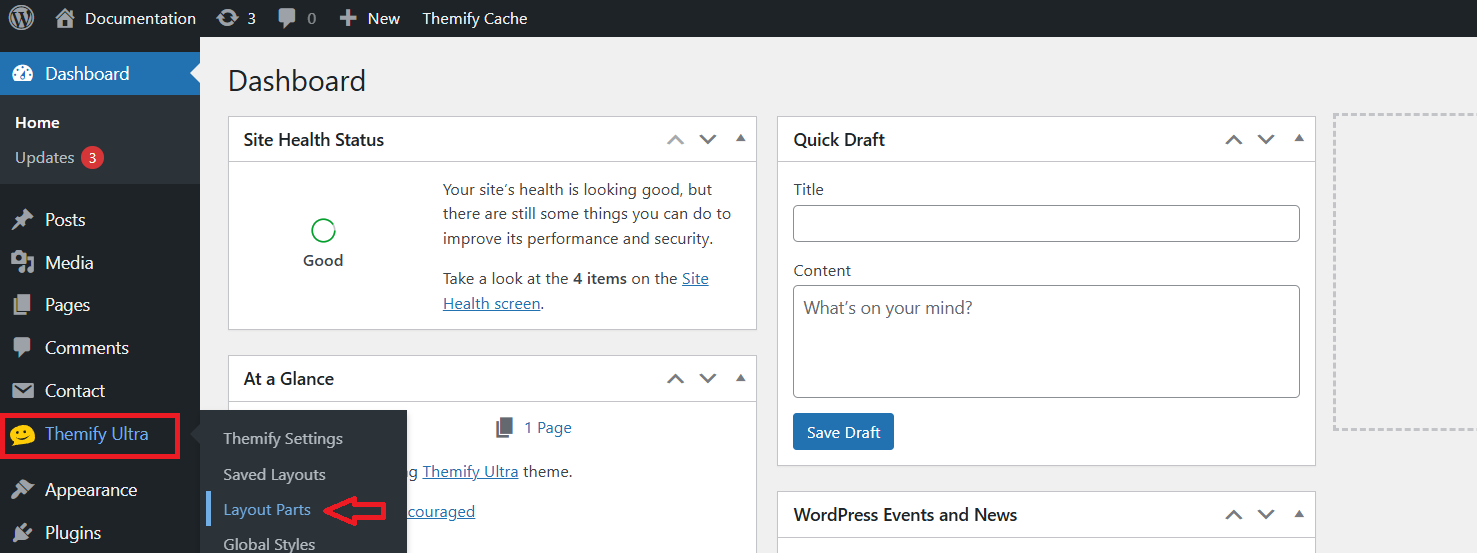
Go to Themefy Ultra: In your WordPress dashboard, navigate to Appearance and select Themefy Ultra (or the specific theme you’re using).
-
Click on Layout Parts: Once inside the Themefy Ultra options, locate and click on Layout Parts to access the layout customization options for headers, footers, sidebars, and other parts of your website’s layout.
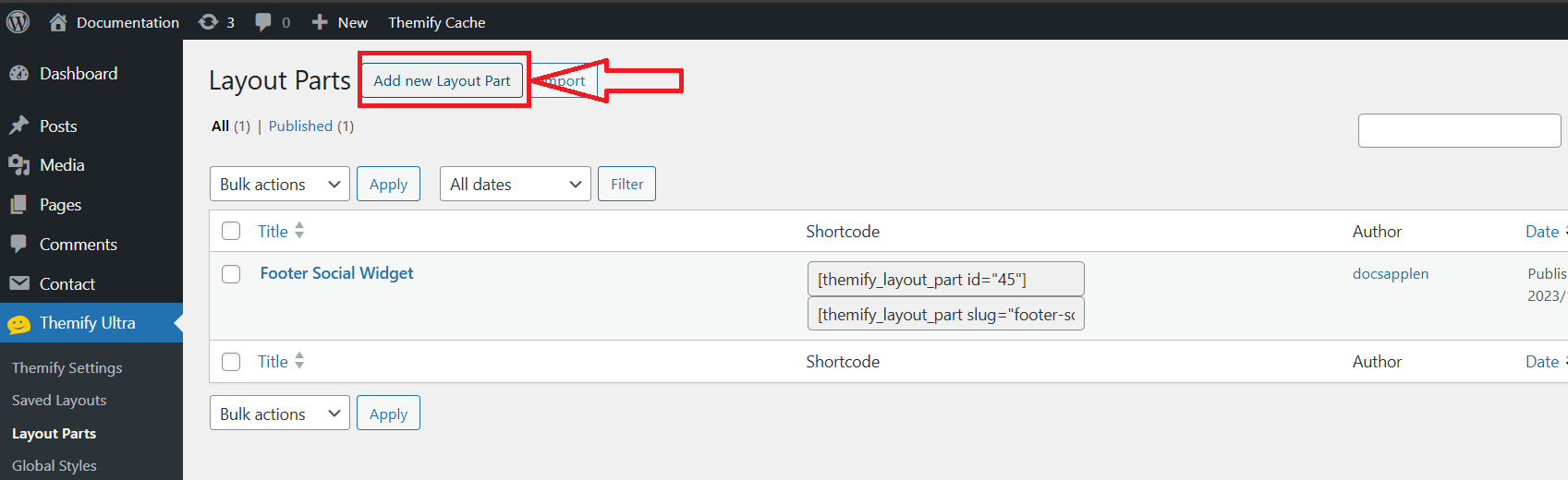
To Add a Layout Part, Click “Add Layout Part”
Name the Layout Part and Add the Widget
In the settings, write Footer as the name of your layout part to specify you’re creating a footer, then add the widget areas within the footer to add elements like text, social media links, or contact info.
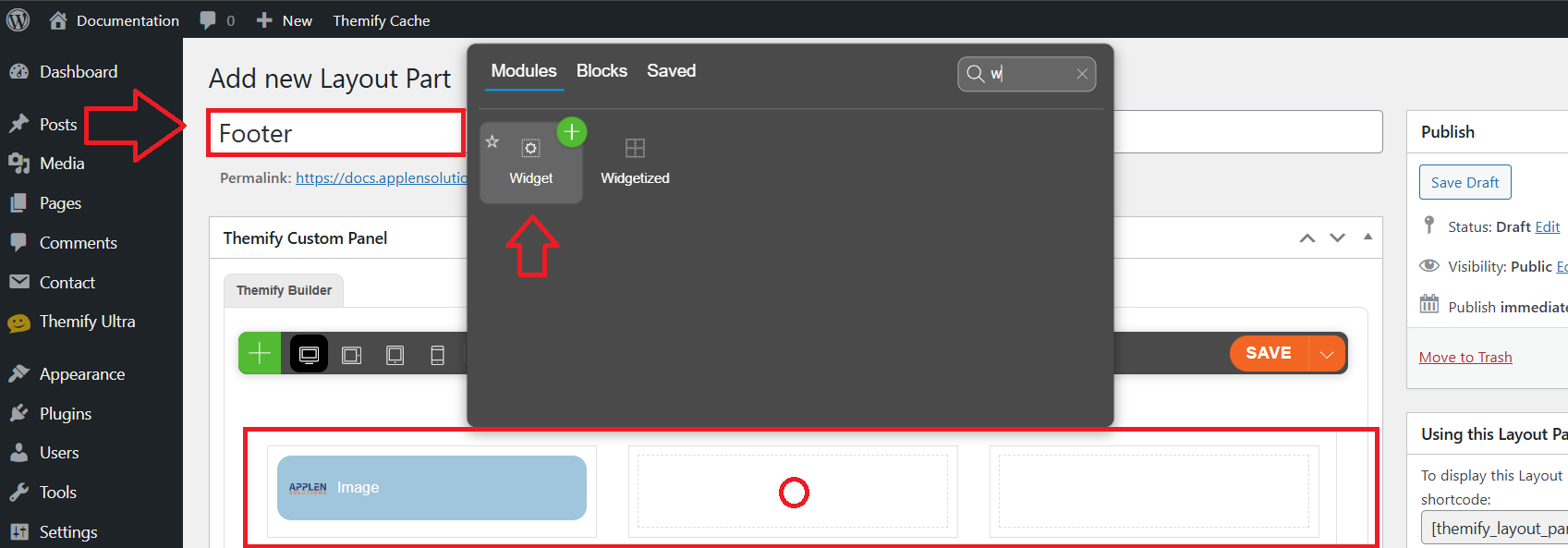
Select Widget
After customizing the footer layout part, choose the widget name you want to add, such as Text, Custom HTML, or Recent Posts, and then configure it to display the desired content in your footer area.
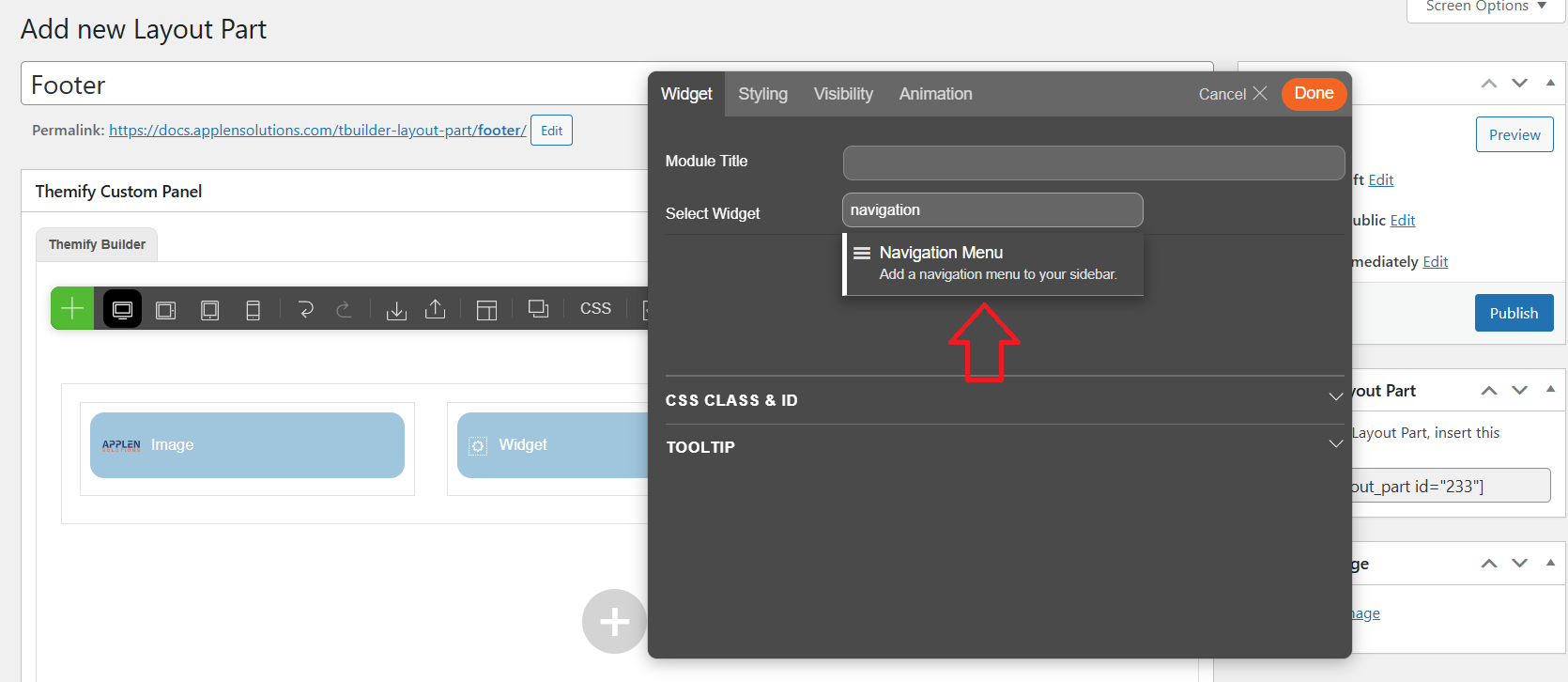
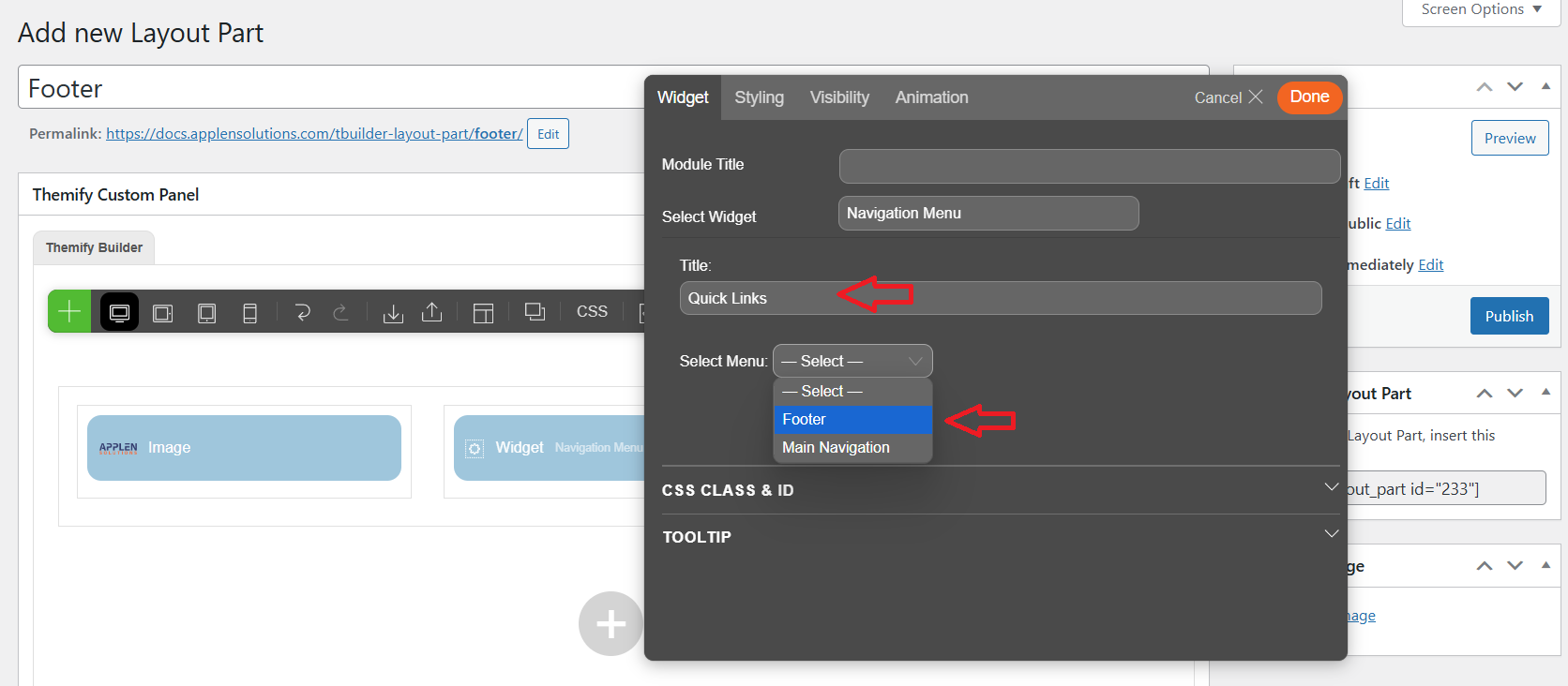
Write the Title and Select the Menu in Widget
Once you’ve selected the widget, enter a title for the widget (e.g., “Quick Links”) and then choose the appropriate menu (such as a navigation menu) to display in the widget area. This allows you to customize the footer with specific links or content.
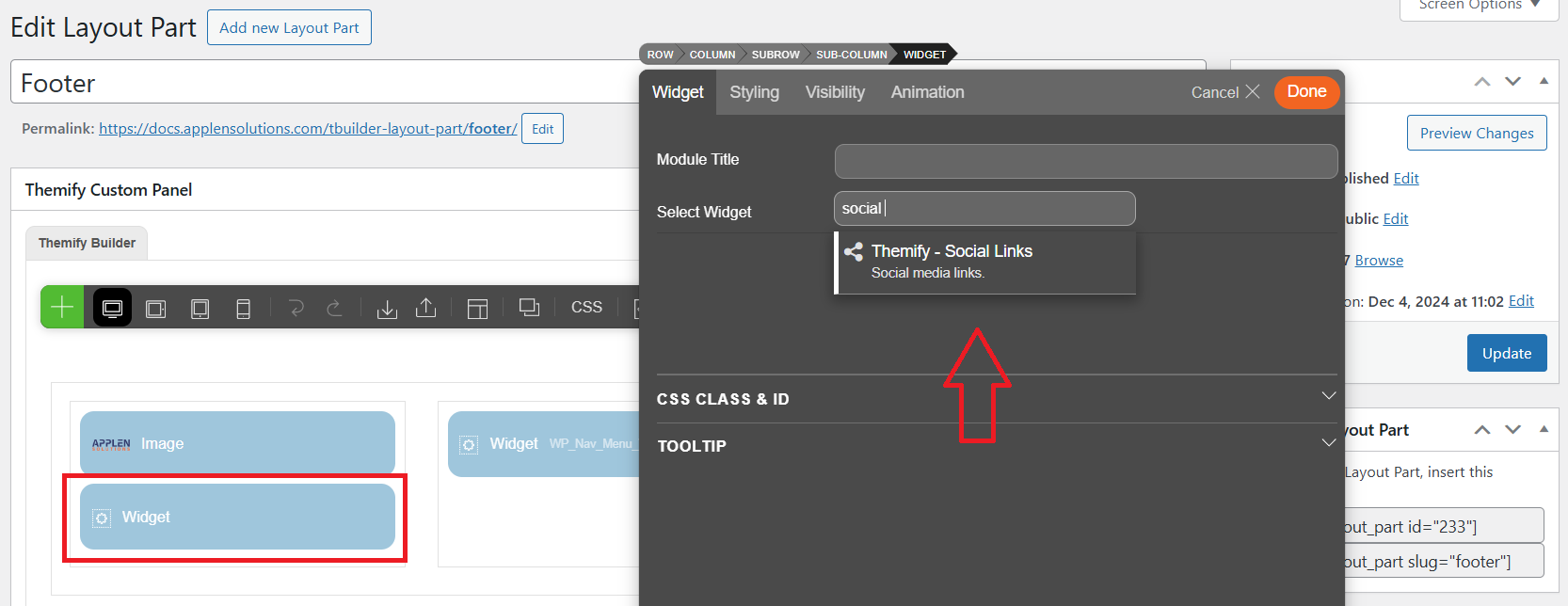
Add Social Links in Widget
Select the Text Widget, write “Social Links” as the title, add your social media links in the content area, and click Save.
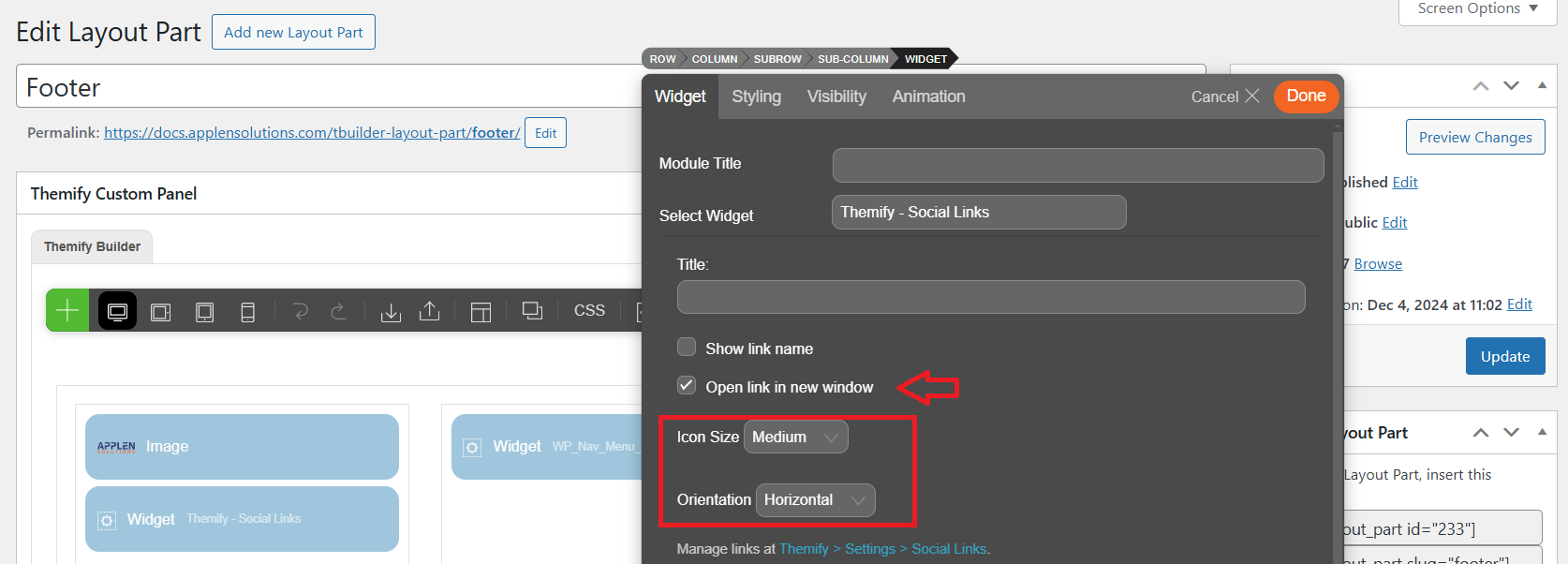
Edit the Icon Size and Orientation: To adjust the size and orientation of social media icons.
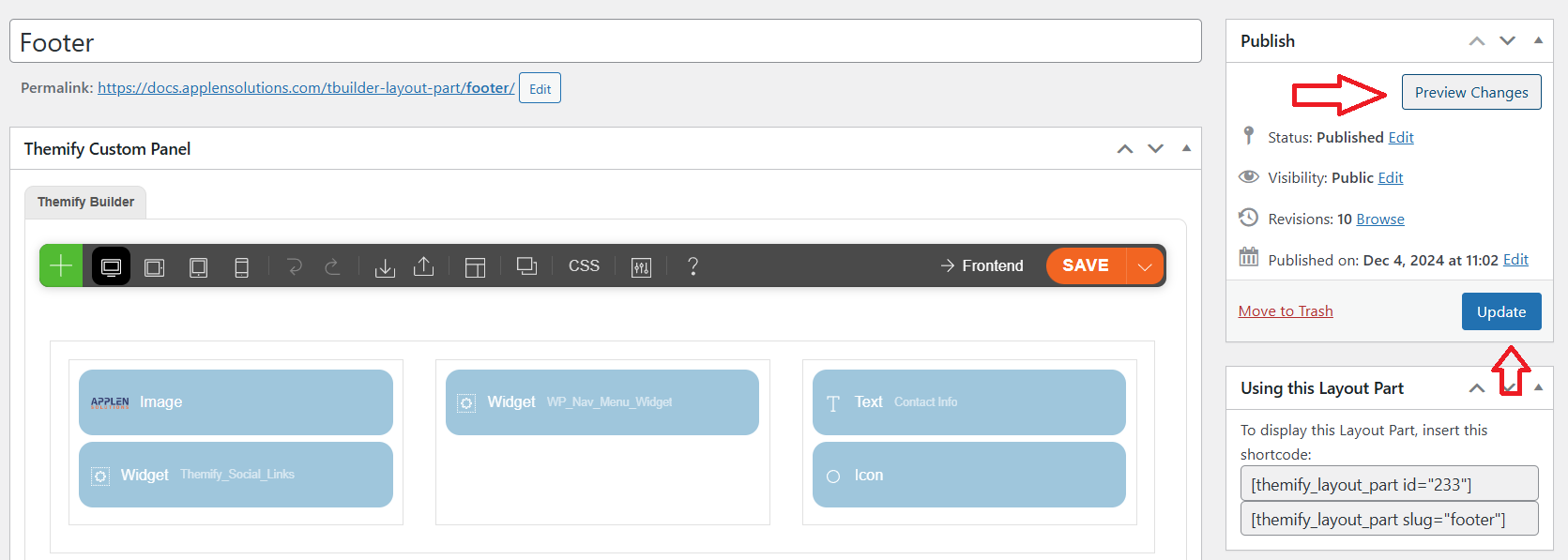
After making your edits (such as adjusting the icon size and orientation), click Update to save the changes. Then, click Preview to view how the changes appear on your website.

Shortcode for Layout Parts
To use a layout part, insert the relevant shortcode (e.g., [layout_part_footer]) in the page or post editor. After adding the shortcode, click Publish or Update to apply the changes.

Themify Settings
Click Themefy Ultra. Next, click on Themefy Settings to access the theme’s configuration options and customize your site’s layout, colors, typography, and more.

Add Footer in Layout Parts
- Click on Hook Content: In the Themefy Ultra settings, go to the Hook Content section.
- Add Footer: Select the area where you want to add the footer, typically under wp_footer.
- Paste the Shortcode: Insert the shortcode for the layout part (e.g.,
[layout_part_footer]) into the designated content area. - Save Changes: Click Save or Publish to apply the changes to your footer.

No Footer
click on Theme Settings, and then select Theme Appearance to customize the overall look and feel of your website.

In the Footer Design Tab, Select “No Footer”: Navigate to the Footer Design tab in your theme settings and choose the No Footer option to remove the footer from your site

click save to store the data.

View the Footer
After selecting the “No Footer” option in the Footer Design tab, visit your website to confirm that the footer has been removed or updated as per your settings.