
Woocomerce
Install WooCommerce
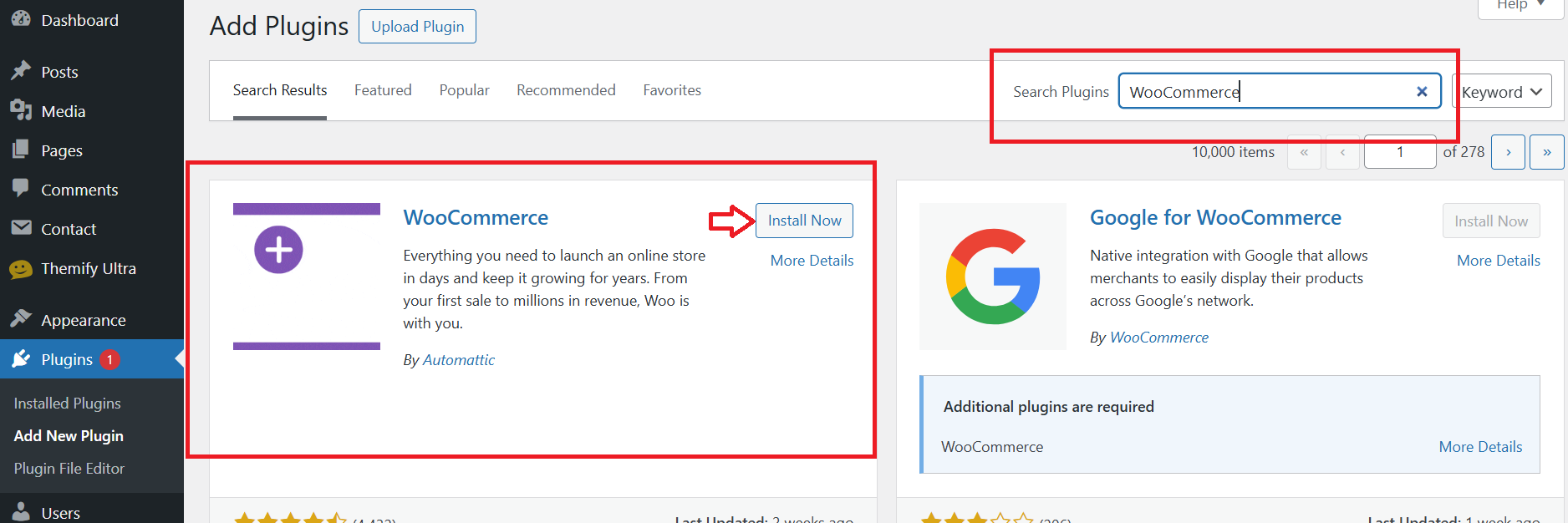
- Navigate to Plugins > Add New

- Search for “WooCommerce.“
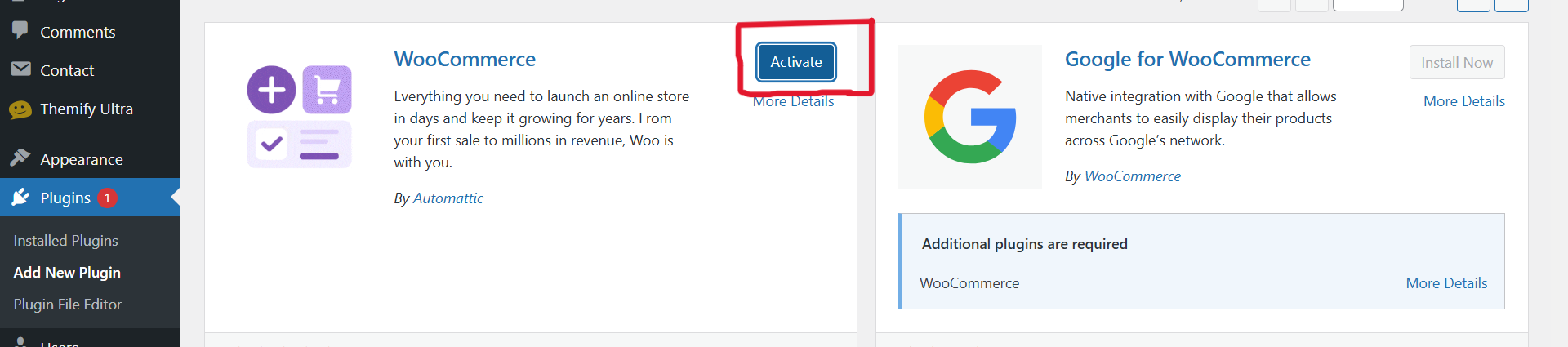
- Click Install Now and then Activate.
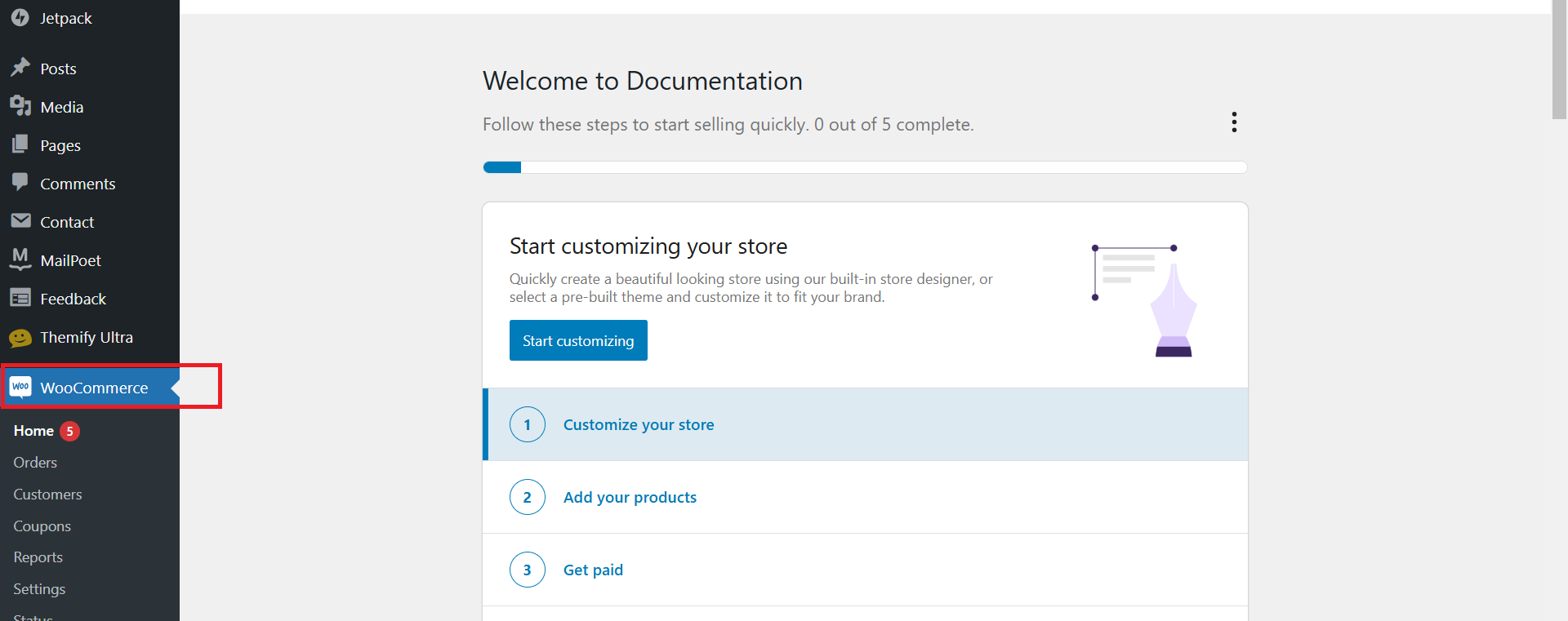
See WooCommerce plugins view left side of dashboard.
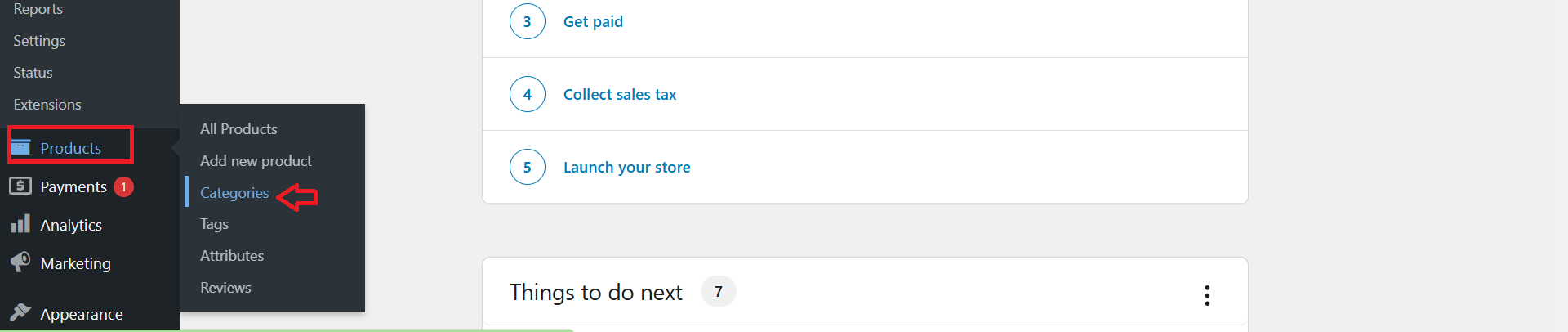
How to create and manage product categories in WooCommerce?
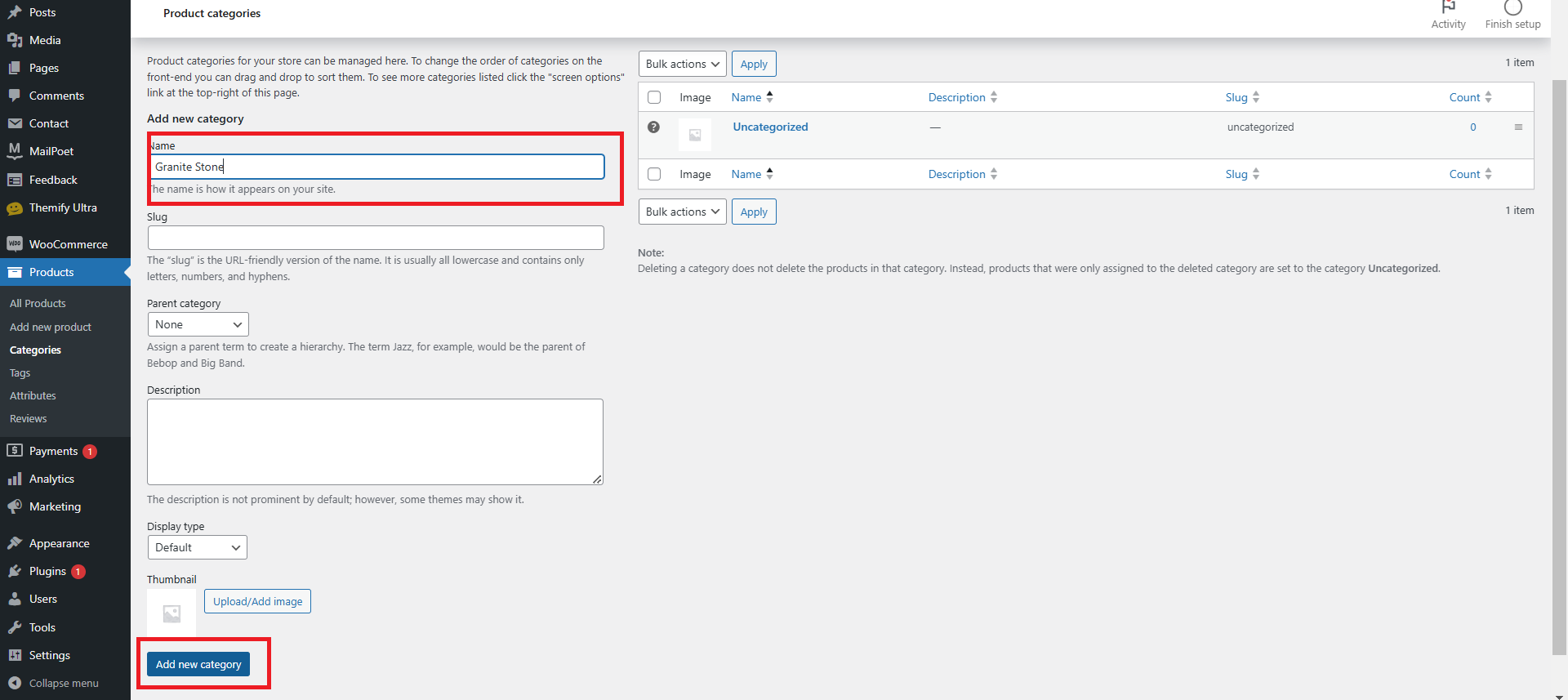
To create a new product category in WooCommerce, navigate to Products > Categories in your WordPress dashboard.
Enter the category name in the “Name” field, and if needed, specify a slug for the URL. To enhance the category, you can upload a thumbnail image by clicking “Upload/Add Image” under the “Thumbnail” section. Add a description if necessary, and select a parent category if creating a subcategory. Once all details are complete, click the Add New Category button to save your category.
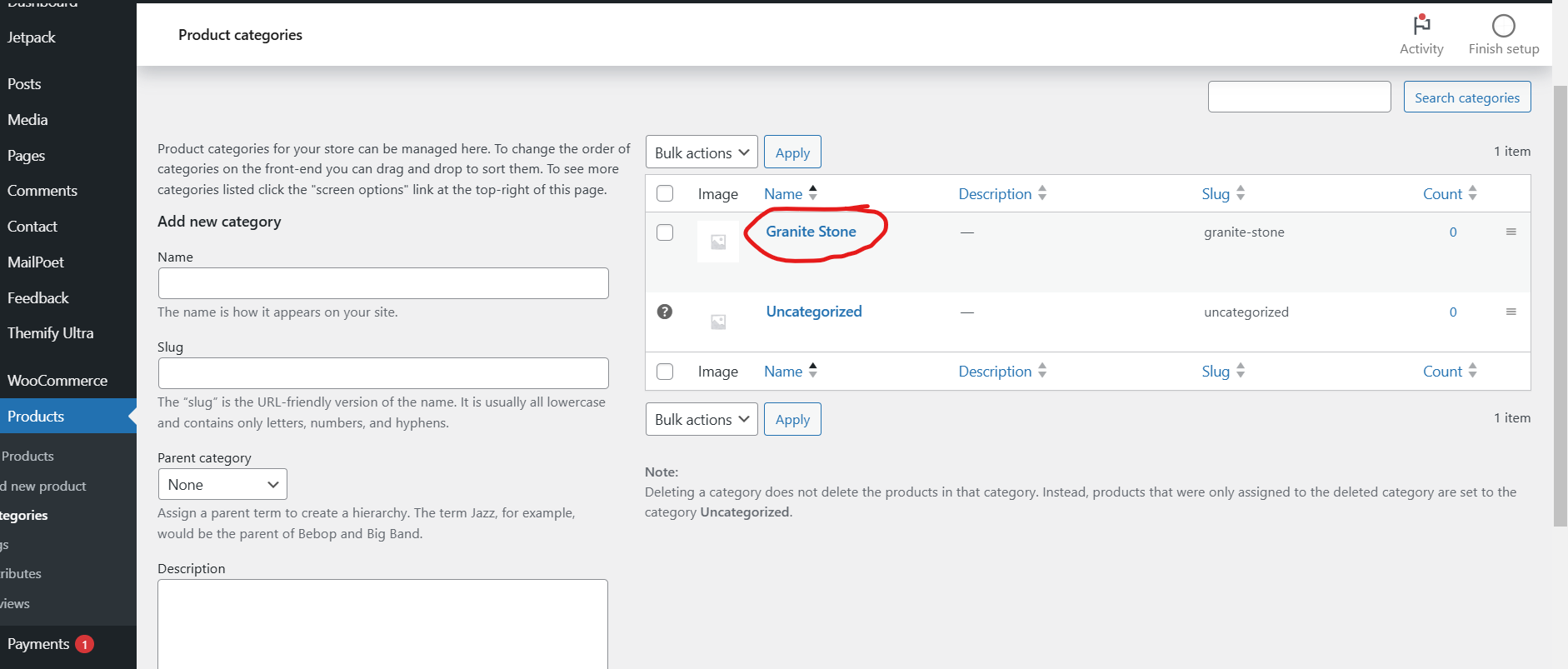
View Category created.
To add a product in WooCommerce
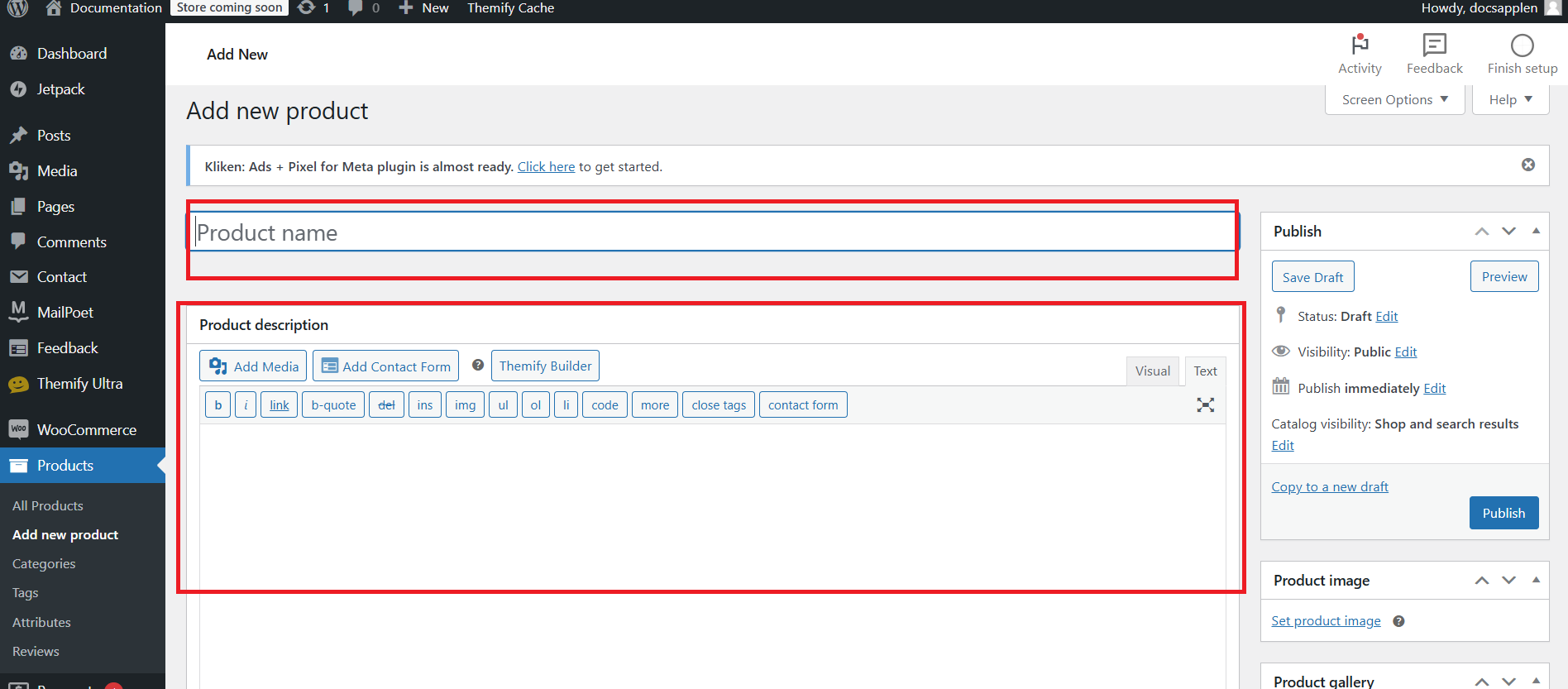
In your WordPress admin dashboard, go to Products > Add New.

Enter Product Details:
- Product Name: Enter the product title in the “Product Name” field.
- Description: Add a detailed description in the main editor area.
Set Product Data:
In the Product Data section, choose the product type (e.g., Simple, Variable, Grouped, or External) and configure the settings:
- General: Set the regular price, sale price, and tax status.
- Inventory: Manage stock quantity and SKU (Stock Keeping Unit).
- Shipping: Add weight, dimensions, and shipping classes.
- Attributes: Add product attributes like size or color.
- Variations: If it’s a variable product, define variations based on attributes.

Add a concise product summary in the “Short Description” section.

Upload Images:
- Product Image: Set the main product image.
- Product Gallery: Add additional images to showcase the product.

Assign Categories and Tags:
On the right-hand side, assign the product to appropriate categories and tags for better organization.

Once all details are filled in, click the Publish button to make the product live on your store.

View Products.

How to display the product in page?
- Edit the Page.
- Click the + icon and search woo products.

-
Customize the Block: Configure options like product sorting, number of products, and layout directly in the block settings.
-
Publish or Update: Save the changes, and your products will display.